

Handle orders that need action
The Needs action tab on the Orders page lists every order that still needs a document: orders without an invoice, and invoiced orders whose documents no longer add up to the order’s current total after a refund or an edit. Creating the suggested document removes the order from the list on its own.
Why an order is listed
Section titled “Why an order is listed”An order appears under Needs action for one of two reasons:
- It has no invoice. The order was placed since you installed the app, its total is above zero, it is not cancelled, and it has no documents. That covers orders automation skipped by tag or channel, orders that arrived while your monthly limit was reached, orders placed with automation off, and orders whose documents you deleted.
- Its documents do not match the order. The order has an invoice, but a refund has not been credited or an added charge has not been invoiced. Its row shows a warning icon with “Document totals don’t match order total”. Cancelled orders stay in the list for this reason, because a cancelled and refunded order still needs its credit note.
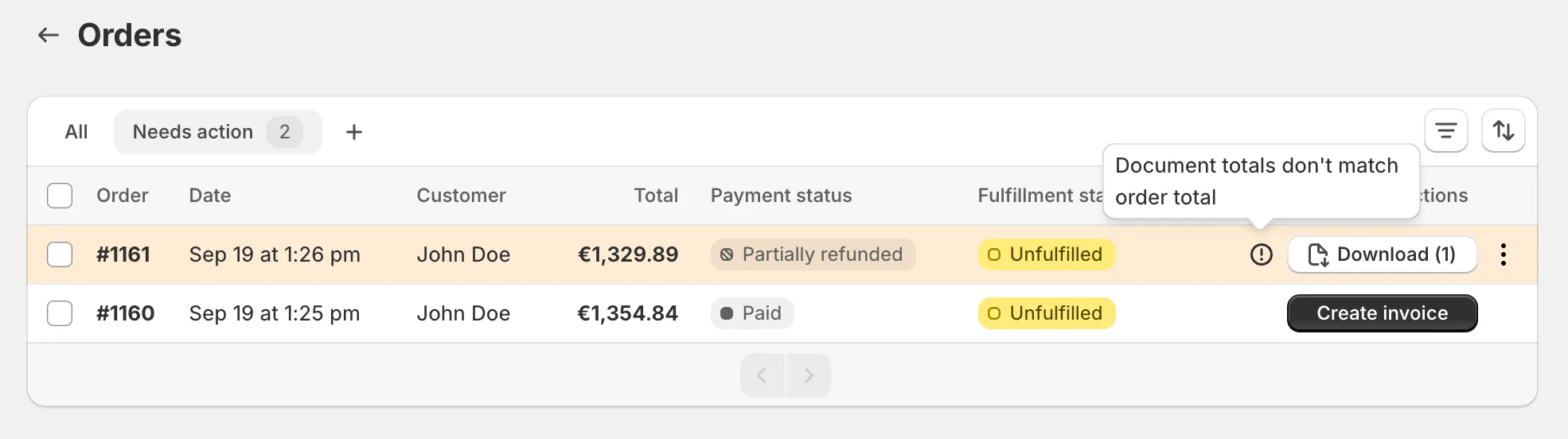
The count on the tab is the number of orders waiting. When there are none, the tab reads “All caught up”.
Clear an order
Section titled “Clear an order”- Create the missing invoice. Click Create invoice in the row.
- Create the missing credit note or supplementary invoice. Open the row’s documents menu. A warning summarises the change, “Total amount decreased by …”, “Total amount increased by …” or “Order has both additions and subtractions. Net change: …”, and the button reads Create credit note, Create additional invoice, or Create documents when both are due.
- Do several at once. Select the rows and use Generate in the bulk actions. Each order gets whichever document it is missing.
- Dismiss an order that needs nothing. Select it and use Dismiss. The order leaves this tab and stays under All. Dismissing is permanent and creates no document.
Good to know
Section titled “Good to know”- Orders placed before you installed the app never appear here for lack of an invoice. Find them under All and use Create invoice. See Invoice orders placed before you installed the app.
- The list updates from Shopify as orders change, so a refund or edit shows up within moments.
- With Create invoices automatically and Automatically handle order changes both on, the list stays close to empty. What remains is what automation deliberately left alone.
- An order edit that added items but has not been paid yet sits here until the payment is recorded or you create the supplementary invoice yourself.