

VAT guide for Shopify stores in the EU
This guide walks through the situations an EU store meets, in the order you usually meet them. For each one it says what Shopify should charge and what to switch on so the invoice comes out right. The rules are summarised in plain language; the thresholds and rates are those in force in September 2026, and your tax adviser has the final word for your business.
My business is not VAT registered
Section titled “My business is not VAT registered”Charge no VAT and print no VAT columns. In Shopify, add no VAT registrations under Settings > Taxes and duties. In Invoice Inn, leave Business is VAT registered unticked under Customize > Business details: the Subtotal, VAT tariff and Total VAT columns stay disabled and the invoice shows line totals and a grand total only.
Customers in my own country
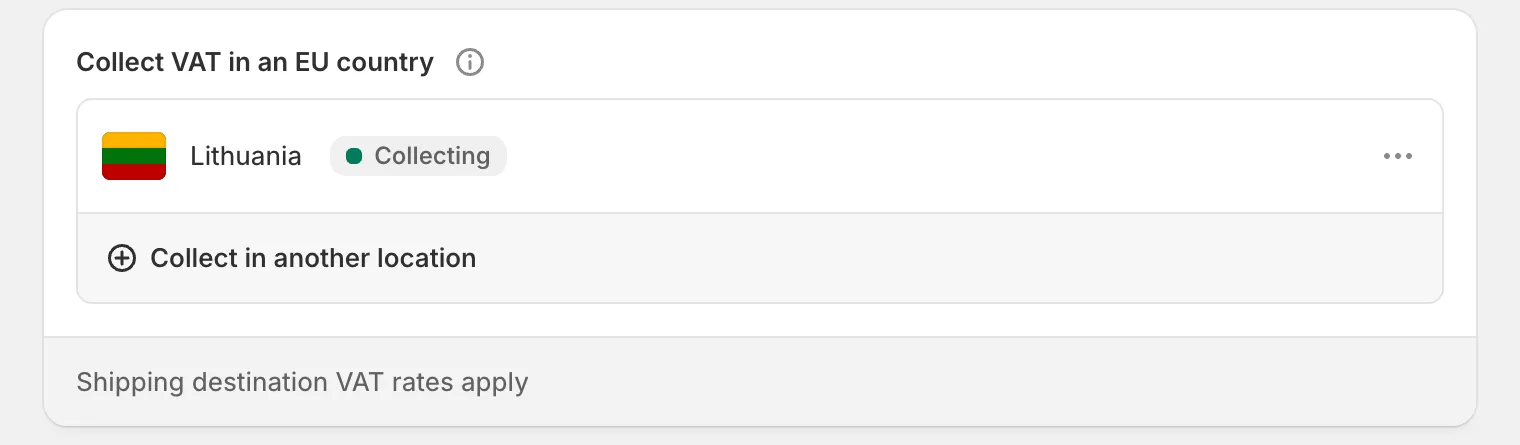
Section titled “Customers in my own country”Charge your home country’s rate for each product. In Shopify, open Settings > Taxes and duties > European Union and add your registration for the country your business is established in.
Consumers in other EU countries
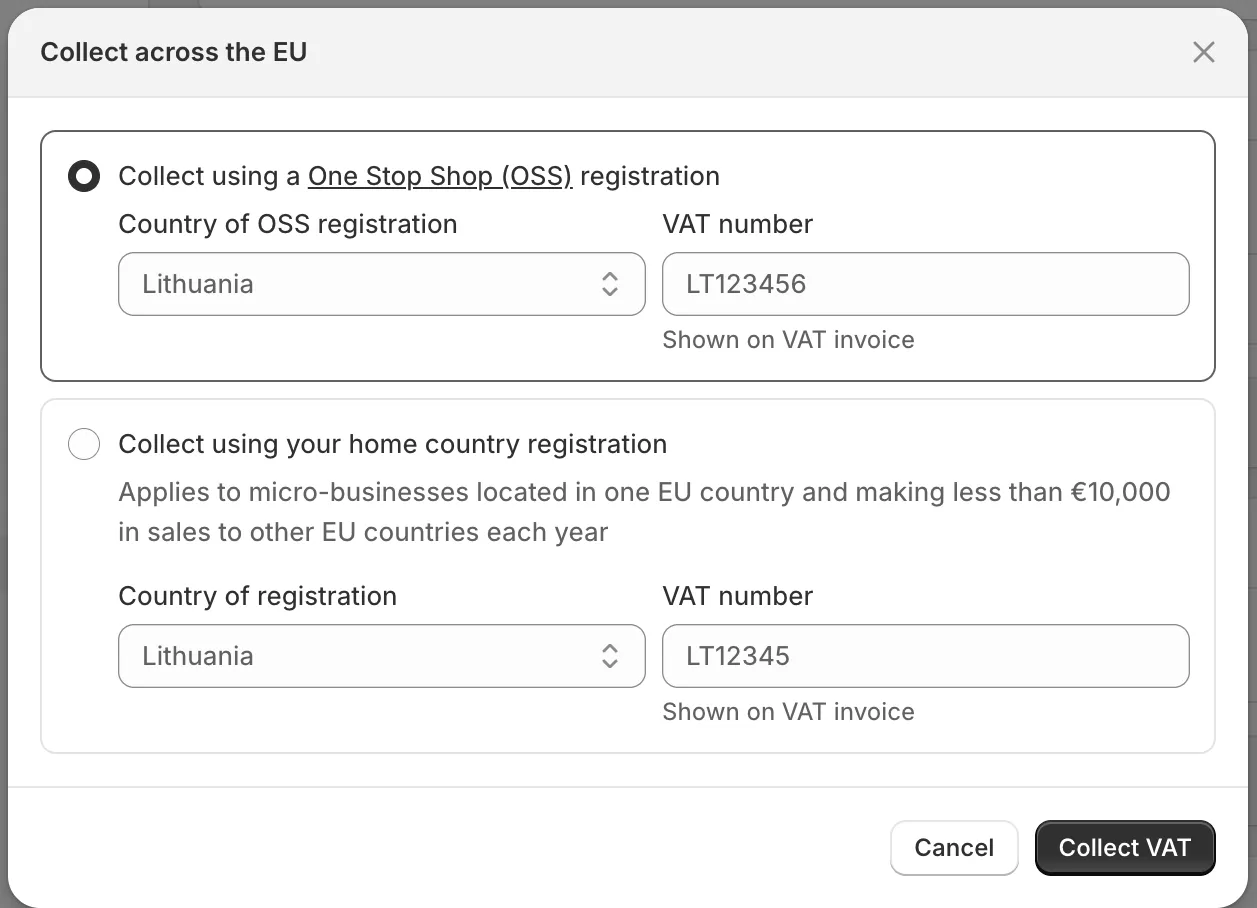
Section titled “Consumers in other EU countries”Below EUR 10,000 of cross-border sales to EU consumers a year, you may charge your home rate on all of them. Above it, you charge the rate of the customer’s country, and report those sales through the One Stop Shop (OSS) instead of registering in each country.
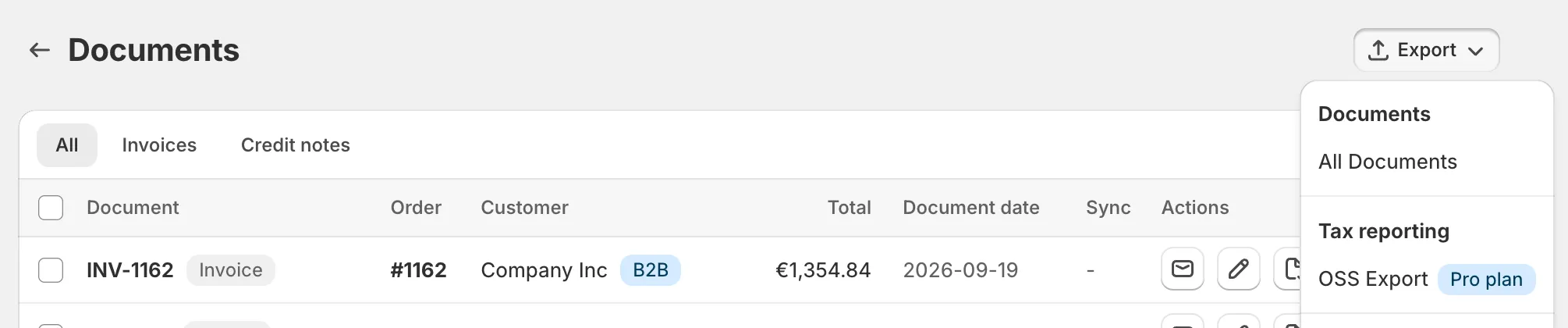
In Shopify, under Settings > Taxes and duties > European Union, set up Collect VAT cross-border: choose Collect using your home country registration, the micro-business option, to keep charging your home rate, or Collect using a One Stop Shop (OSS) registration so Shopify applies the destination rate. Invoice Inn’s OSS export (available on the Pro plan and above, from the export menu on Documents) lists the VAT collected per country for the return. See Prepare your OSS VAT return.
Businesses in other EU countries
Section titled “Businesses in other EU countries”A business customer in another EU country with a valid VAT number is normally invoiced at 0% under the reverse charge, and the invoice carries a legal note saying so. Collect VAT numbers and apply the reverse charge explains how the number reaches the invoice and exactly when the app zero-rates it.
Customers outside the EU
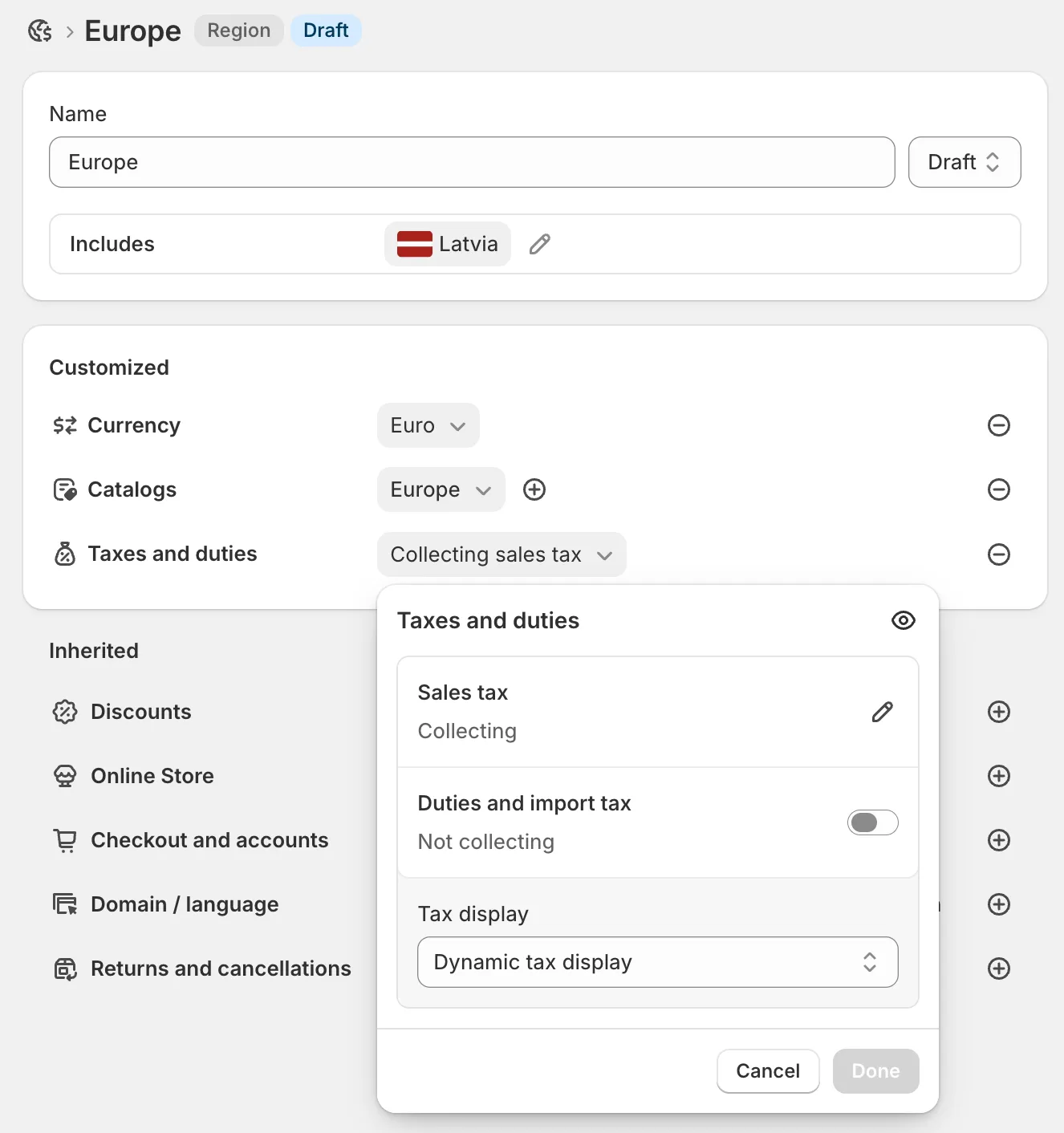
Section titled “Customers outside the EU”Charge no VAT; the invoice prints 0%. If your prices include tax, set Tax display to Dynamic tax display on the market that covers those customers (Markets in the Shopify admin sidebar, then the market, then Taxes and duties), so a customer outside the EU is charged the price without the VAT rather than the same gross amount with no VAT in it.
What the invoice must carry
Section titled “What the invoice must carry”An EU VAT invoice needs the seller’s VAT number, the VAT rate on each line, the VAT amount per rate, the date of supply when it differs from the issue date, and for a B2B sale the buyer’s VAT number and the reverse charge mention. Each one has a setting in Invoice Inn:
- Seller VAT number: Customize > Business details, tick Business is VAT registered and enter the VAT number.
- Rate per line and VAT per rate: Customize > Content, tick VAT tariff and Total VAT.
- Date of supply, when it differs from the issue date: Customize > Content, tick Display date of supply. See Add the date of supply to your invoices.
- Buyer VAT number and the legal note: printed automatically when a VAT number is on the order. A number added later under Documents > Edit is printed and the VAT recalculated, but the note is not added on its own: type it into Notes in the same dialog. The note’s wording can be changed under Customize > Localization in the Translations card.
For the rules themselves, Shopify’s own reference on EU taxes is kept up to date as they change.