

Attach extra PDFs to customer emails
Under Additional attachments on the Email content & language card you can upload up to three PDF files that ride along with every customer email, next to the document itself. Terms and conditions, a return policy or a warranty sheet are the usual candidates. It works on every plan.
Add an attachment
Section titled “Add an attachment”- Open Automations in Invoice Inn and expand Email content & language.
- Scroll to Additional attachments and click Upload PDFs, or drop the files on the box. Only PDF files are accepted, at most three of them, each up to 2MB. The upload box disappears once three files are attached.
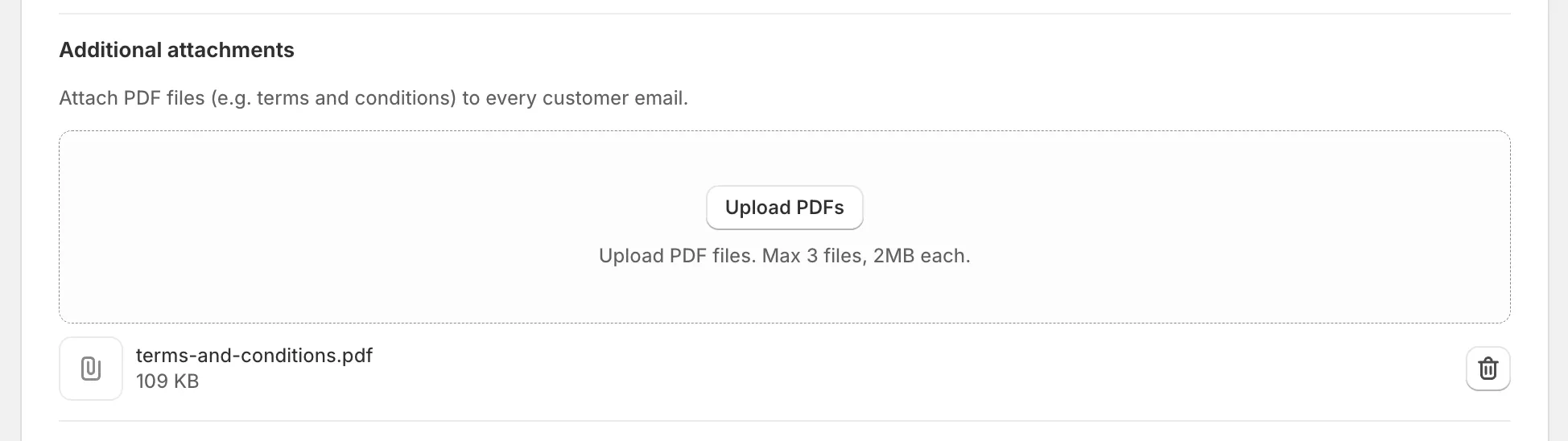
- Click Save in the top bar. You will see “Preferences saved”. Nothing is attached until you save.
Each file is listed with its name and size. The bin icon next to a file removes it; the removal also takes effect on save.
Where the files go
Section titled “Where the files go”The files are attached to every email that carries a document, without exception:
- Automatic emails for first invoices, supplementary invoices and credit notes.
- The copy sent to your own address under Email delivery > Internal emails.
- Emails you send by hand with Send email on Documents.
- Test emails from Send test email.
There is no way to attach a file to invoices only, or to one customer only.
Good to know
Section titled “Good to know”- Every email grows by the size of the files, so three 2MB PDFs add 6MB to each of them. Compress your PDFs before uploading if a customer’s mailbox might reject large messages.
- The attachments are the same for every language. If your terms exist in several languages, put them in one PDF or attach one file per language.
- Replacing a file means removing it and uploading the new version. Emails sent before the change keep the old file.
- The document PDF itself is always attached as well. See Email invoices to your customers automatically for what the email contains.