

Set up automatic invoices
Turn on invoice generation once and every new order gets its invoice the moment it is paid or fulfilled, without you opening the app. It takes a minute to set up and works on every plan, including Free.
Before you start
Section titled “Before you start”- Automation reacts to payments, refunds and fulfillments that happen after you save. An older order that is paid or fulfilled later is picked up too; one that has had no such event since stays on the Orders page, where Create invoice still works for it.
- Know your monthly limit: 50 documents on Free, 500 on Starter, 5,000 on Pro, no limit on Premium. Invoices and credit notes both count. See Plans and monthly document limits.
Turn on invoice generation
Section titled “Turn on invoice generation”- Open Automations in Invoice Inn and expand Invoice generation.
- Tick Create invoices automatically. The badge next to the card title reads On as soon as the box is ticked, but nothing is saved yet.
- Under Create invoices, choose When the order is paid or When the order is fulfilled. The next section explains the difference.
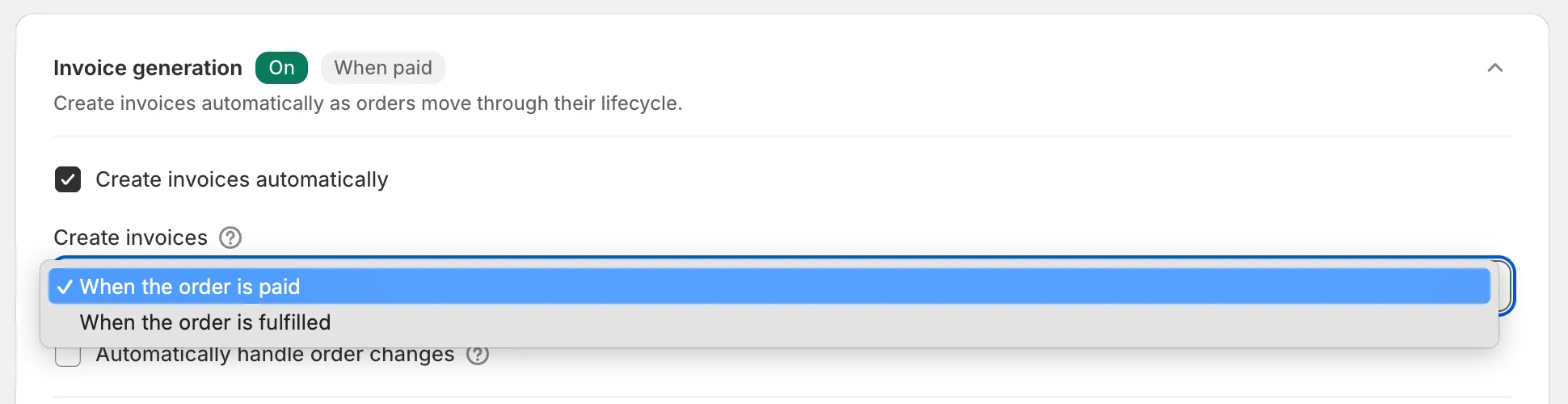
- Tick Automatically handle order changes so a refund gets a credit note and an added charge gets a supplementary invoice. Leave it unticked if you would rather review each change yourself under Needs action.
- Click Save in the top bar. You will see “Preferences saved”.
Choose when the invoice is created
Section titled “Choose when the invoice is created”When the order is paid is the default. The invoice is created when Shopify records the payment, so it reaches the customer before the parcel does. For manual payment methods such as bank deposit, test one order to see whether that happens when the order is placed or when you mark it as paid. The invoice bills the order as it was placed. If part of the order was refunded before the invoice existed, the invoice still shows the full amount and a credit note for the refund follows straight away, as long as Automatically handle order changes is on.
When the order is fulfilled waits until the order is marked as fulfilled in Shopify. This is the right choice when you often cancel lines or refund part of an order before it ships, because the invoice then bills only what actually shipped: refunds made before fulfillment are netted out and no credit note is needed for them. The trade-off is that an order that never ships never gets an invoice.
Whichever you pick, an order that already has a document, or had one that you deleted, is left alone. Invoice Inn never recreates an invoice you removed on purpose; create it again from Orders if you change your mind.
What happens next
Section titled “What happens next”A new order that meets the trigger gets its invoice within moments of the payment or fulfillment. It appears on the Documents page under Invoices, and on the Home page the Automation card shows Invoices as On. Any later refund or edit adds a credit note or supplementary invoice next to it when Automatically handle order changes is on.
The invoice is emailed to the customer only if Email delivery, further down the same page, is on. See Email invoices to your customers automatically. Documents you create by hand from Orders are emailed and synced under the same rules as automatic ones.
Good to know
Section titled “Good to know”- An order fully refunded before it was invoiced gets no documents at all, with either trigger. There is nothing left to bill.
- Some orders can be kept out of automatic invoicing by tag or by sales channel. See Skip orders from automatic invoicing.
- Usage counts every document created in the current calendar month, including ones you later delete, and resets on the first of the month. When you reach your plan’s limit, automatic generation pauses until the reset or an upgrade, and the Home page shows a Document limit reached banner. You get a warning email at 80 percent.
- Orders that automation did not invoice, for whatever reason, collect under Needs action on the Orders page. See Handle orders that need action.
- Automation runs only inside Invoice Inn. There are no Shopify Flow triggers or actions.