

Brand your customer emails
Every email that delivers a document to a customer can carry your logo at the top and an accent colour of your choice. Both are set under Automations > Email branding, with a live preview next to the controls, and both work on every plan. The one thing branding cannot remove on the Free plan is the “Powered by InvoiceInn” line in the footer, which the Starter plan and above take away.
Set the logo and colour
Section titled “Set the logo and colour”- Open Automations in Invoice Inn and expand Email branding.
- Under Logo, click Upload logo or drop a file on the box. PNG and SVG files up to 2MB are accepted. The logo on your documents is a separate upload under Customize > Design; see Add your logo.
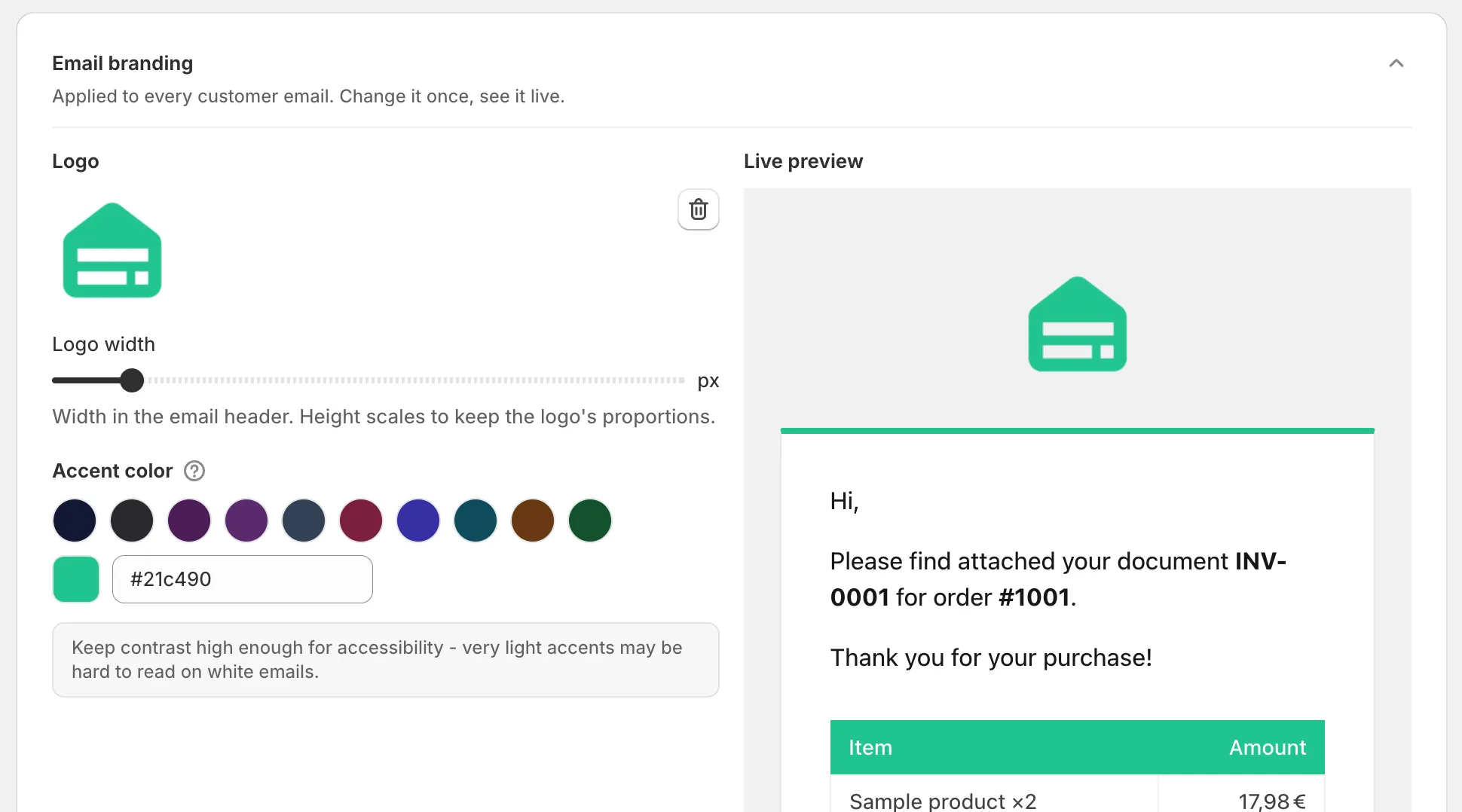
- Drag Logo width to size it, from 40 to 400 pixels. The height follows the logo’s proportions. The default is 200.
- Under Accent color, click one of the ten swatches, open the picker for any other colour, or type a six-digit value into Hex color, such as #2A2A2E. Three-digit codes and colour names are not accepted.
- Check the Live preview on the right, then click Save in the top bar. You will see “Preferences saved”.
What the customer sees
Section titled “What the customer sees”- Header. Your logo, linking to your store. Without a logo, the header shows your From name from the Email delivery card as bold text instead.
- Accent colour. The thin border along the top of the white message card, the links in the message, and the header row of the order summary table. Keep it dark enough to read on white; a very light accent makes links hard to see.
- Footer. Your From name, and on the Free plan the line “Powered by InvoiceInn”. See Remove the Invoice Inn footer.
The preview shows a sample order in the language of the tab selected on the Email content & language card, using your currency format.
Good to know
Section titled “Good to know”- Branding applies to every email that carries a document: automatic sends, the copy to your internal address, and the Send email action on Documents. The pending page behind the invoice link in Shopify order emails does not use it, and neither do the emails Invoice Inn sends to you about your account.
- A PNG with a transparent background, or an SVG, looks best on the white header. JPG is not accepted for the email logo, although it is for the document logo.
- The bin icon next to the logo removes it. The change applies once you save.
- A test sent from Email content & language uses the logo and colour as last saved, so save first if you want to see a new logo in the test.