

Design your invoice
The look of your invoices and credit notes is set under Customize > Design, with a live preview next to the controls. Start from one of five templates or the design generated for your store, then adjust the layout, colours and fonts. Everything is on every plan except the AI suggestion, which is on the Starter plan and above. Invoices and credit notes share one design.
What you can change
Section titled “What you can change”Open Customize, switch to the Design tab, and work through the sections. The preview on the right follows every change.
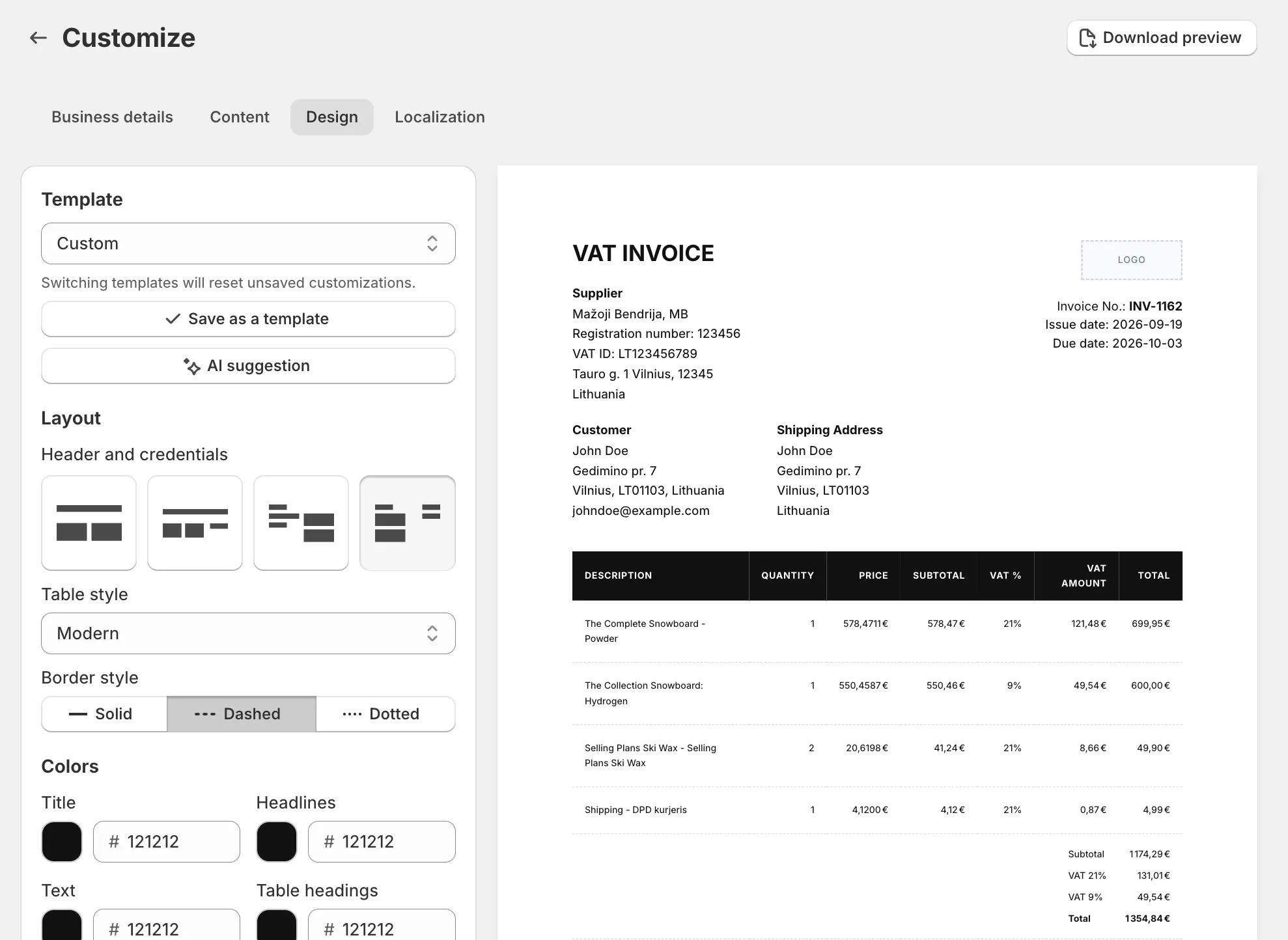
- Template. Pick Classic Minimal, Elegant, Industrial, Black Tech or Sketchy Red, the Personalized for your store design generated when you installed the app, or any template you saved yourself. As soon as you touch a control the select reads Custom. Switching templates resets unsaved changes and asks you to confirm.
- Save as a template. Stores the current layout, colours and typography under a name so you can come back to it from the same select. The logo is not part of a saved template. Saved templates cannot be deleted from the app today.
- AI suggestion. Opens AI design suggestion, which reads your storefront theme’s colours and typeface, your store name and domain and the product names from recent orders, and fills in the design fields in about 20 seconds with a short note on its choices. Nothing is saved until you click Save, so you can discard it by switching templates. Available on the Starter plan and above.
- Layout. Header and credentials offers four header layouts as thumbnails, which decide where the logo, your details and the customer’s details sit. Table style is Modern, Classical or Minimal. Border style is Solid, Dashed or Dotted.
- Colors. Six colours: Title, Headlines, Text, Table headings, Table heading text and Borders. Click the swatch or type a hex value.
- Typography. Font family lists 19 Google fonts, from Inter and Roboto to Playfair Display and Source Code Pro. Then four rows, Title text, Main text, Heading text and Table text, each with a size (Small, Medium, Large, and Extra small for the table), a Bold toggle and Normal, Capitalize or Uppercase for the case.
- Logo. Add logo and Logo width. See Add your logo.
Click Save in the top bar when you are done. You will see “Preferences saved”.
Preview a real PDF
Section titled “Preview a real PDF”The preview on the page is an HTML rendering. To see the actual PDF, click Download preview in the page header; it downloads a sample document with your current settings. If you have unsaved changes, the app asks you to Save and download first.
Good to know
Section titled “Good to know”- The design applies to documents generated from now on. Existing PDFs are not redrawn, except when you edit a document, which regenerates its PDF with the current design.
- Keep the text colours dark. The AI suggestion checks contrast on white paper; your own choices are not checked.
- What the document contains, such as columns, the shipping address, the due date and the footer note, is set under Customize > Content, not here. The labels are under Customize > Localization; see Translate your documents.
- On the Free plan the document carries a small Invoice Inn mark whatever the design. See Remove the Invoice Inn footer.