

Set up Invoice Inn
The first time you open Invoice Inn, a three-step setup asks for your company details, how invoices should be numbered and how they should look. It takes a few minutes, everything in it can be changed later under Customize, and no invoice is created until you generate one yourself or turn on Automations.
Before you start
Section titled “Before you start”- Invoice Inn prints the tax that Shopify charged on each order and never calculates any itself. If a banner titled Shopify taxes may not be configured sits above the setup, work through Set up taxes in Shopify for correct invoices before your first real invoice.
- Have your VAT number to hand if your business is VAT registered.
Step 1: Company
Section titled “Step 1: Company”The country, name and address are filled in from your store’s billing address in Shopify, so check them rather than retype them.
- Pick your Country of registration. It sets the document language and the timezone documents are dated in; both can be changed later.
- Check the Legal business name and Address. They print in the seller block of every invoice, so use the registered name if it differs from the shop name.
- Enter your Registration number, the number your company has in your country’s business register (KVK, Handelsregisternummer, Įmonės kodas, etc.).
- Enter your VAT number if your business is VAT registered. This prints the number on every document and unlocks the VAT columns. Leave it empty if you are not registered.
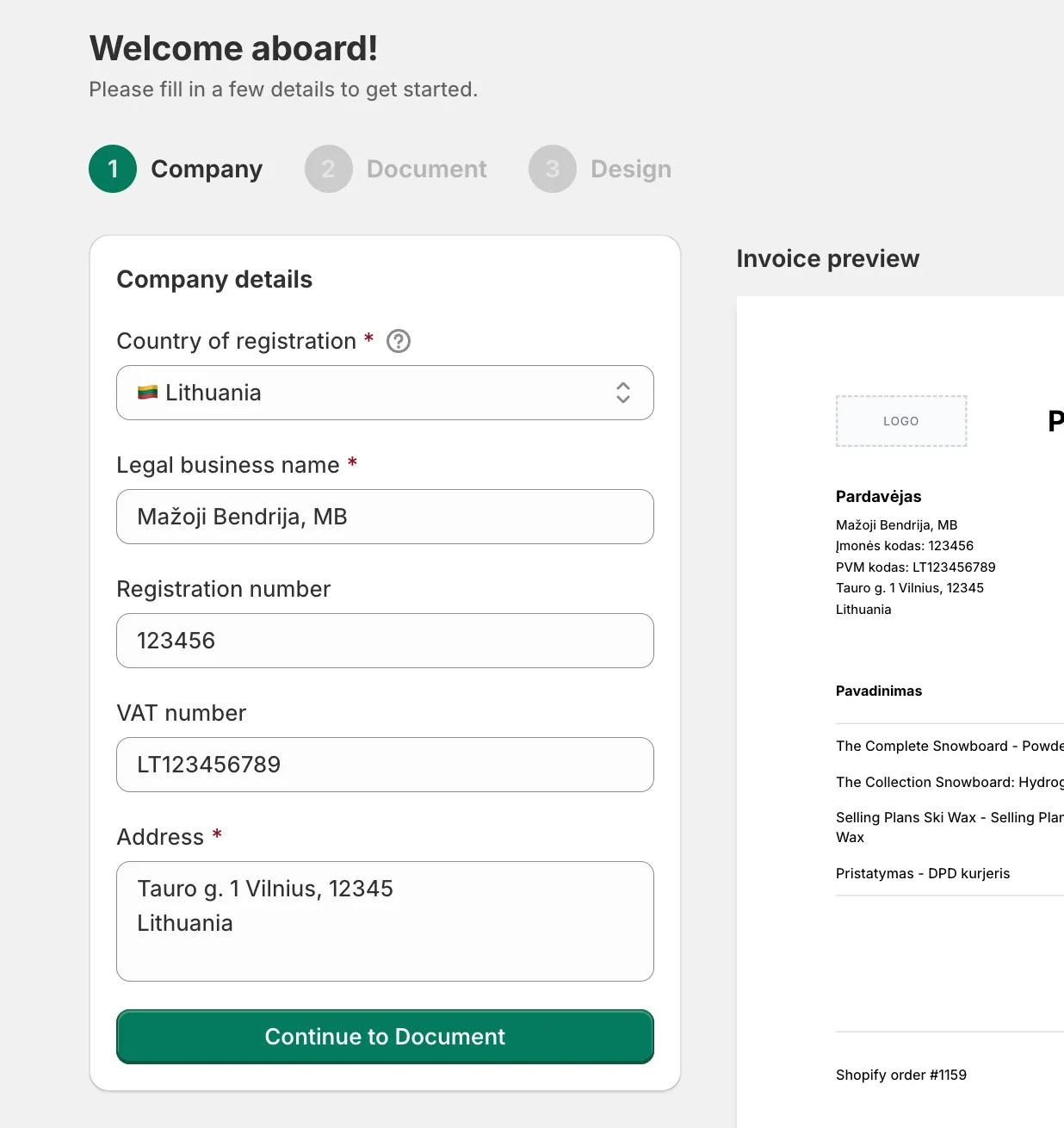
- Click Continue to Document. Country, name and address are required.
The Invoice preview on the right updates as you type, and Download preview gives you the same sample as a PDF.
Step 2: Document
Section titled “Step 2: Document”- Check the Document language, set from your country in step 1. It is the language of the labels on the PDF; customer emails have their own language setting under Automations.
- Choose a Date format from the samples.
- Under Numbering, pick how invoice numbers are built:
- Order number uses the Shopify order number, so order 1001 gets invoice
INV-1001. - Sequential counts up from a starting number, so the first invoice is
INV-0001, the nextINV-0002. - Custom lets you write your own template from tokens such as
%%%%for the counter and{{order_number}}for the order number.
- Order number uses the Shopify order number, so order 1001 gets invoice
- For Order number and Sequential, set the Prefix (series). The default is
INV-, and the example under the field shows the first number you will get.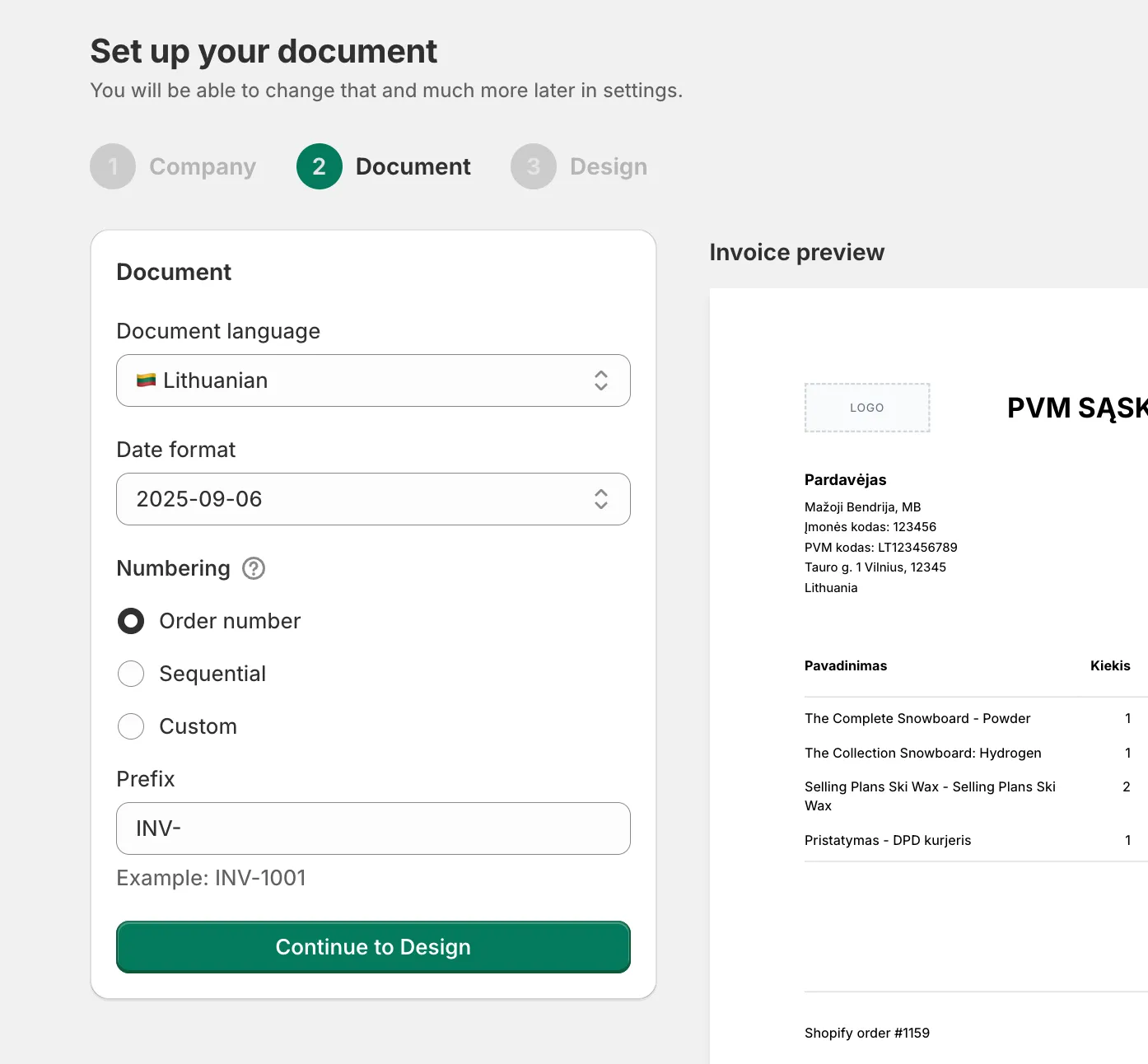
- For Sequential and Custom, set the Invoice counter. Starting from 001 is right for a new store. Choose Custom and type the number in the box that appears to carry on from another invoicing tool.
- Click Continue to Design.
Credit notes are numbered separately with a CR- prefix, following the same scheme for Order number and Sequential and a plain counter for Custom. Both templates can be rewritten later under Customize > Content.
Step 3: Design
Section titled “Step 3: Design”- Choose Template and pick one from the list: Classic Minimal, Elegant, Industrial, Black Tech or Sketchy Red. The preview shows each one as you switch.
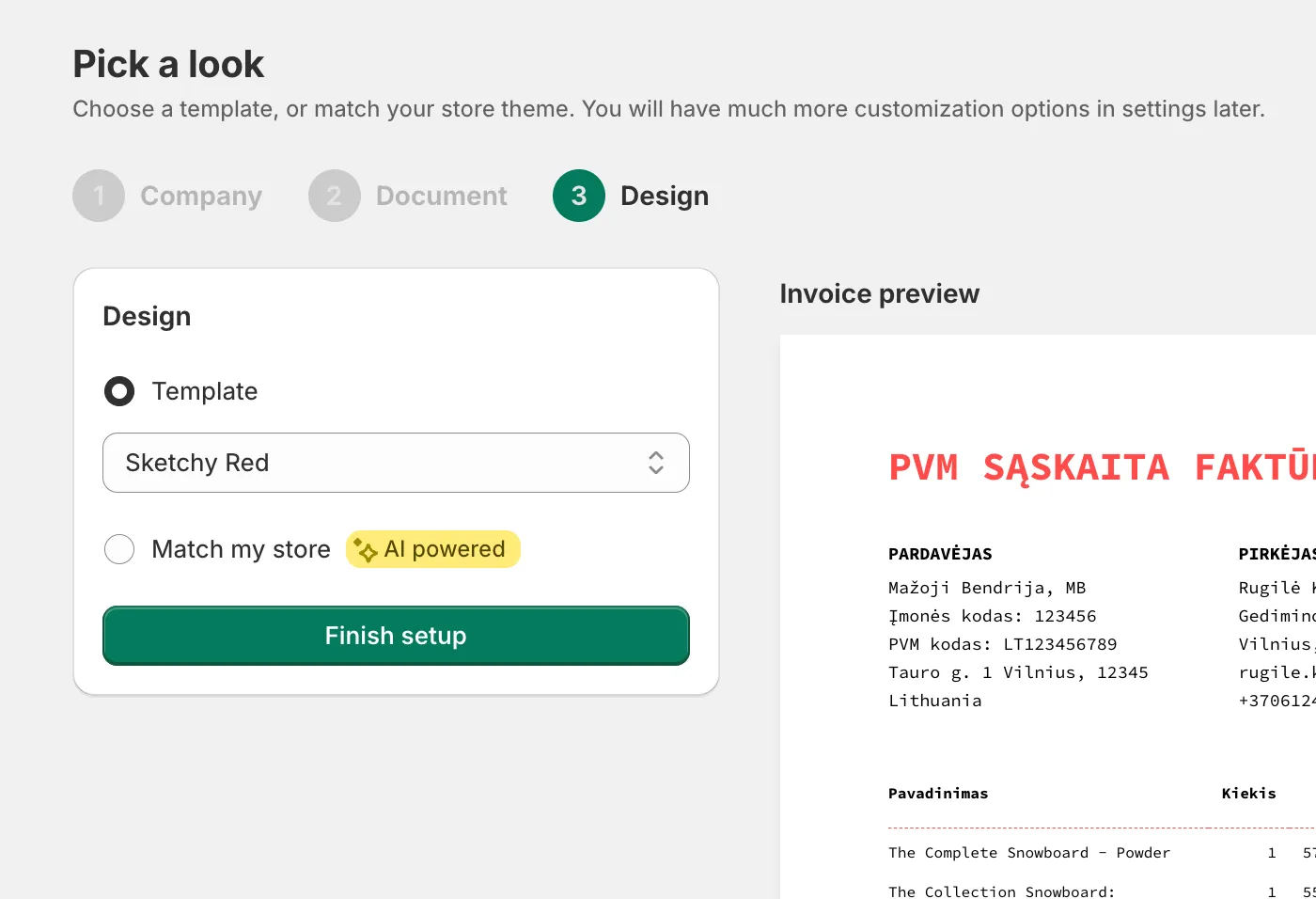
- Or choose Match my store, marked AI powered: a design generated from your store’s theme when you installed the app, with a short note explaining its choices. It can still be generating when you reach this step, in which case the preview shows a loading state for up to a couple of minutes. Pick a template instead if you would rather not wait; the generated design is kept under Customize > Design as Personalized for your store.
- Click Finish setup. You will see “Onboarding completed” and land on the Home page.
The setup has no logo step. Add one afterwards under Customize > Design with Add logo (an image up to 2MB), where colours, fonts, the header layout and the table style are too.
After setup
Section titled “After setup”The Home page shows a card titled You’re set up. One thing left. with a Turn on automation button, the overview stats, and a Customize section with shortcuts to the settings you just filled in.
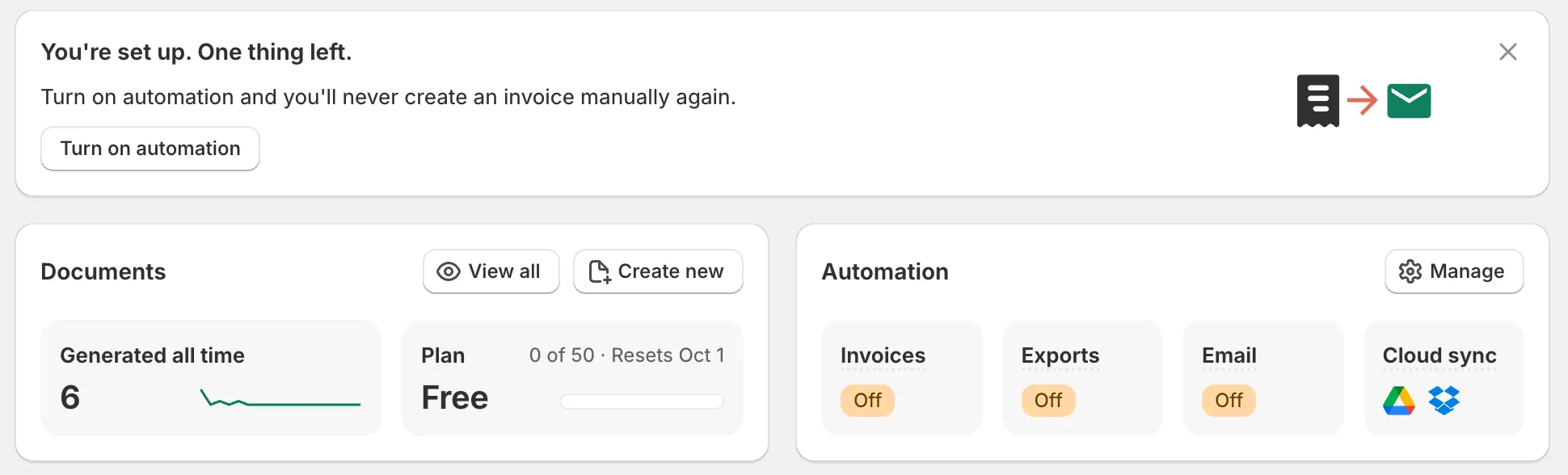
Nothing is automatic yet: invoice generation and customer emails are both off after setup. Finish with these three things.
Generate one invoice by hand
Section titled “Generate one invoice by hand”Place a test order, open Orders in Invoice Inn and click Create invoice in the order’s row. Check the seller block, the number, the language and the tax lines on the PDF. This is a real document and counts towards your monthly limit.

Turn on automatic invoices
Section titled “Turn on automatic invoices”- Open Automations and expand Invoice generation.
- Tick Create invoices automatically.
- Under Create invoices, choose When the order is paid or When the order is fulfilled. Paid is the default and gets the invoice to the customer before the parcel. Fulfilled bills only what shipped, which suits stores that often edit or partly refund orders before fulfillment.
- Tick Automatically handle order changes so a refund gets a credit note and an added charge gets a supplementary invoice.
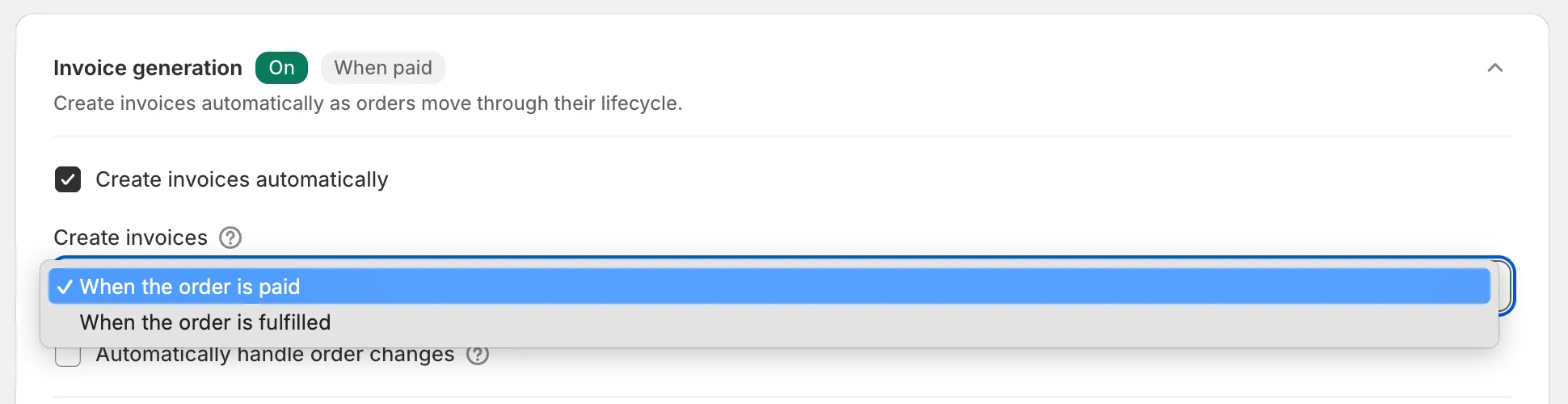
- Click Save in the top bar. You will see “Preferences saved”.
Automation applies to orders from the moment you save. Orders placed before that stay on the Orders page, where Create invoice still works for them.
Email documents to customers
Section titled “Email documents to customers”In the same place, expand Email delivery and tick Send documents to customers automatically. Set a From name and Reply-to email under Sender identity so replies reach you. Under B2B customers the default is Skip B2B customers, which holds back emails for orders placed through a Shopify company profile or carrying a company name or VAT number; choose No special handling if business customers should get their invoice by email too. Then Save.
Good to know
Section titled “Good to know”- The setup runs once. Everything in it lives under Customize: the company in Business details, numbering in Content, the template in Design, language and date format in Localization.
- The Free plan includes 50 documents a month. Invoices and credit notes both count, and the count resets on the first day of the month. Free plan documents carry a small “Invoice Inn” branding line in the footer, which paid plans remove.