

Show totals in your national currency
When you invoice in one currency and file VAT in another, EU VAT rules ask for the VAT amount in the national currency of the country where you file. Invoice Inn can print the net, VAT and total of each invoice converted into that currency at the European Central Bank (ECB) exchange rate, next to the original amounts. It is off by default and available on the Starter plan and above.
Before you start
Section titled “Before you start”- On the Free plan the setting shows a Starter plan badge and cannot be ticked.
- Some countries, such as Poland and the Czech Republic, accept the ECB rate only if you have opted for it instead of the national bank rate. Invoice Inn uses ECB rates only, so check with your accountant first.
Turn on converted totals
Section titled “Turn on converted totals”- Open Customize and stay on the Content tab.
- Under Table, tick Display converted totals. Three more settings appear below it.
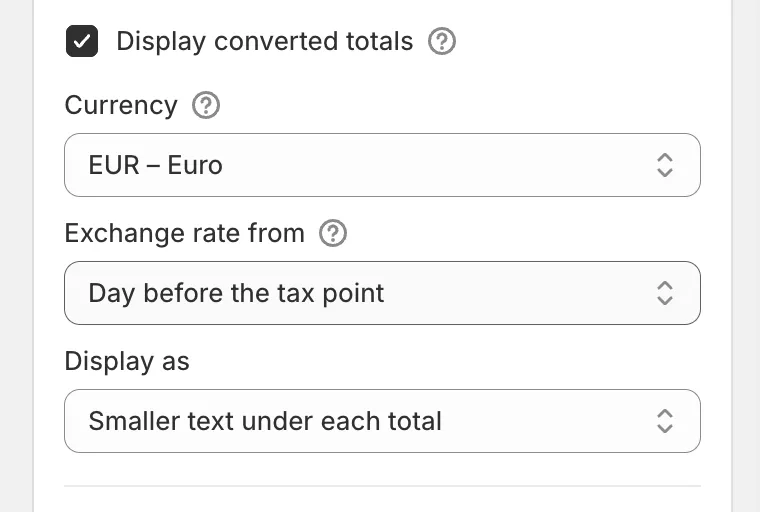
- In Currency, choose the currency you file VAT in: EUR, CZK, DKK, HUF, PLN, RON or SEK. It starts on the currency of the business country under Customize > Business details, or EUR when that country is outside the EU.
- In Exchange rate from, choose Day before the tax point or Tax point day. The next section explains the difference.
- In Display as, choose Separate section below the totals or Smaller text under each total.
- Click Save. The preview shows the converted totals on your latest order at today’s ECB rate. If that order is already in the currency you chose, the preview shows none, as the invoice would not either.
Which exchange rate is used
Section titled “Which exchange rate is used”The rate is taken for the tax point, the day VAT became due on the order: the day of the first payment or the first fulfillment, whichever came first. An order that was neither paid nor fulfilled when it was invoiced, such as cash on delivery, uses the day it was placed. A payment that was only authorized, not captured, does not count. The day is taken in the Timezone set under Customize > Localization. The date of supply printed on the invoice does not change it.
- Day before the tax point uses the latest ECB rate published before that day. This is the default.
- Tax point day uses the rate published on that day.
The ECB publishes rates on working days, in the afternoon Central European Time. On a weekend or holiday the last working day’s rate applies, and an invoice generated before that day’s rate is out gets the latest one available. The date printed next to the rate is always the ECB date used.
The rate is fixed when the document is generated. Editing the document or changing the settings never changes it, and documents generated before you turned the setting on stay without converted totals.
- A supplementary invoice, which bills charges added to the order later, takes the rate for its own issue date.
- A credit note copies the rate of the order’s first invoice, so a refund converts at the same rate as the sale. This works on every plan, and a credit note for an invoice without converted totals has none either.
How this shows on your invoice
Section titled “How this shows on your invoice”With Separate section below the totals, a section follows the totals table:
- A line with the rate, for example “Exchange rate (ECB, 2026-09-28): 1 USD = 3.653846 PLN”.
- Total excl. VAT (PLN), one VAT 23% (PLN) line per VAT rate, and Total incl. VAT (PLN) in bold.
With Smaller text under each total, each converted amount prints in smaller text under the net, each VAT line and the total it converts, and the rate line sits below the totals.
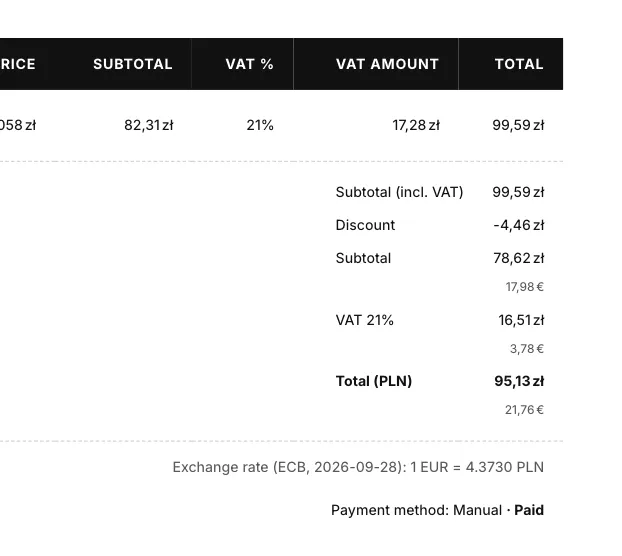
The printed rate is the exact rate used, so anyone can check the amounts from the PDF. Into euros it reads the way the ECB publishes it, such as “1 EUR = 4.3730 PLN” on a złoty invoice. Between two other currencies, such as USD and PLN, Invoice Inn works the rate out through the euro. Each VAT line is converted on its own and the converted total is the net plus the VAT, so the section always adds up.
An invoice with no VAT, such as a reverse charge sale, a tax-exempt customer or a store that is not VAT registered, shows the converted net and total without VAT lines.
The labels follow the document language. You can rewrite them under Customize > Localization in the Translations card, under Converted totals. Keep the :date, :currency and :rate placeholders in your wording; they are replaced with the date, the currency code and the VAT rate.
When a customer pays in a currency other than your store currency, the VAT lines already carry a small amount in your store currency at Shopify’s rate. If you convert into your store currency, the ECB amount replaces it, so the invoice never shows two different amounts in the same currency.
When there are no converted totals
Section titled “When there are no converted totals”- The invoice is already in that currency. There is nothing to convert.
- The ECB does not publish a rate for the invoice currency, such as the UAE dirham. The invoice is generated without converted totals and nothing is flagged.
- The ECB rate could not be fetched when the document was generated. The document is created anyway, and Documents shows a Converted totals missing badge on its row. Click Edit on the row and Save to add the converted totals. For a credit note, save its invoice first, then the credit note.
Good to know
Section titled “Good to know”- Converted totals appear on the PDF only, including a translated download. The CSV and OSS exports keep the amounts in the document currency.
- When an order is paid in several parts, the first payment sets the tax point.
- If you move to the Free plan, documents that already carry a rate keep printing it, and new invoices are generated without one.
- Currencies outside the EU, such as GBP, CHF or NOK, cannot be chosen.