

Show the shipping address on invoices
By default a document prints one address block, Customer, with the billing details from the order. One setting adds a second block, Shipping Address, with the address the order ships to. It is off by default and applies to invoices and credit notes alike.
Turn it on
Section titled “Turn it on”- Open Customize and stay on the Content tab.
- Under Header, tick Display shipping address.
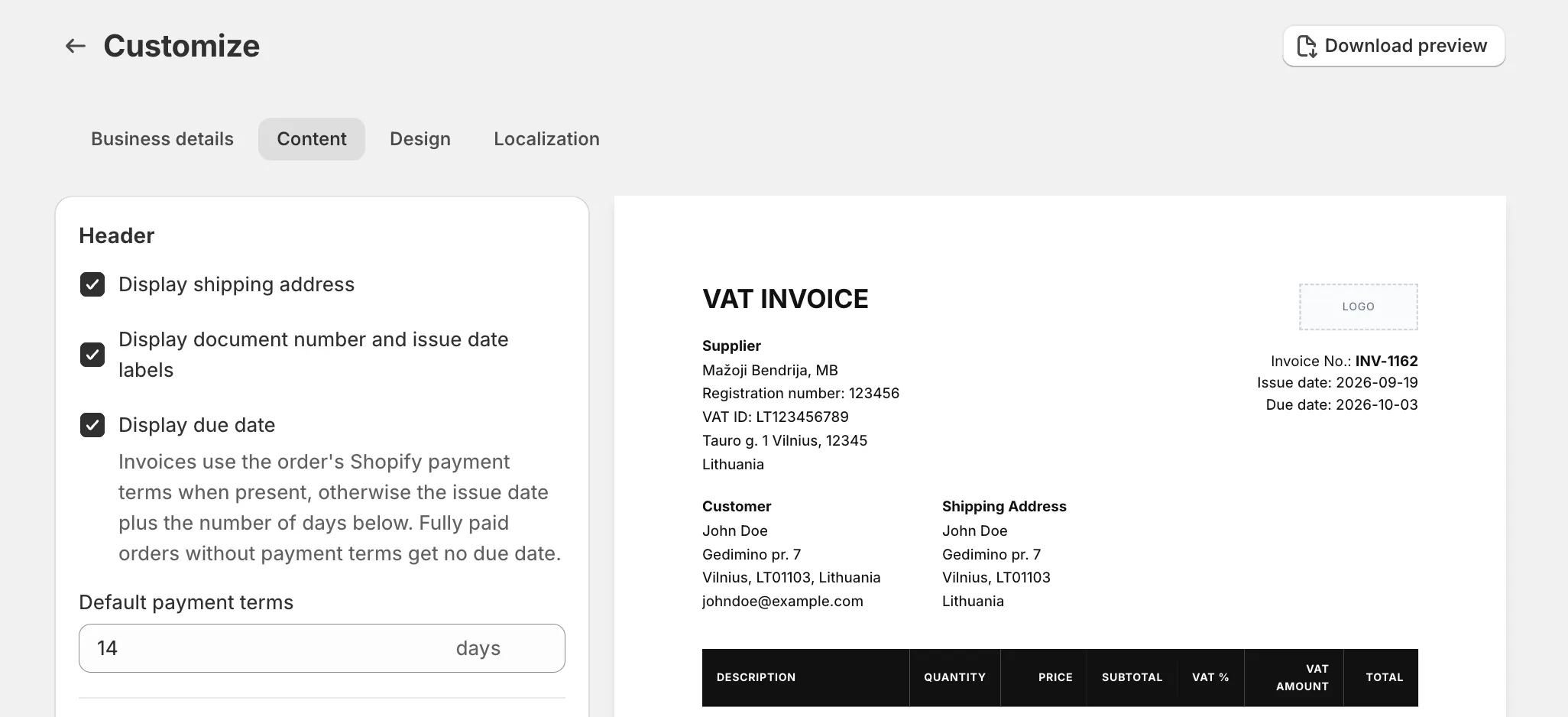
- Click Save. The preview next to the settings adds the block to the sample document straight away.
How this shows on your invoice
Section titled “How this shows on your invoice”The header gains a Shipping Address block beside Supplier and Customer. Where exactly it sits depends on the header layout chosen under Customize > Design. The block prints, one line each: the recipient’s name, the company if there is one, the street lines, then city, region and postal code on one line, the country, and the phone number if the order has one.
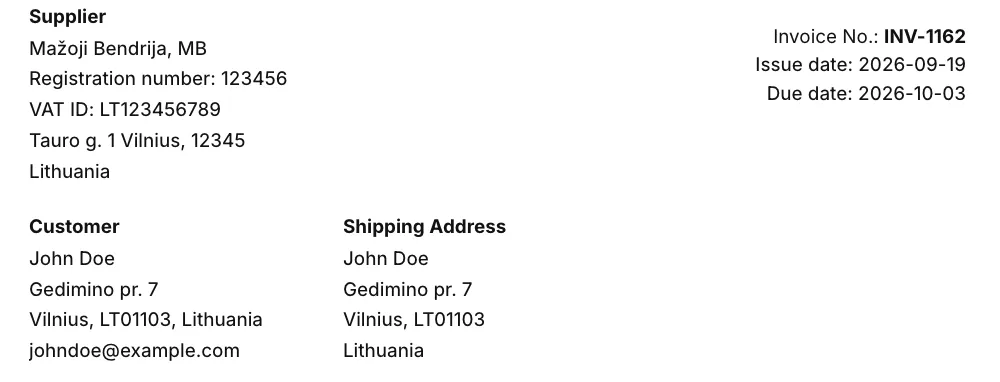
The title follows the document language, and you can rewrite it under Customize > Localization in the Translations card, under Titles.
Good to know
Section titled “Good to know”- An order with no shipping address, such as a local pickup or a digital order, prints no block even when the setting is on. Nothing else on the document changes.
- When an order has no billing address, the Customer block already shows the shipping address. With the setting on, both blocks then print the same address.
- The shipping address is taken from the order and cannot be edited in the document’s Edit dialog. The dialog changes the customer’s billing details only. Editing never re-reads the order either, so a fix made in Shopify afterwards reaches the PDF only if you delete the document and generate it again from Orders.
- The setting applies to documents generated from now on. An existing PDF is created once and stored, so to add the block to one of them, open it with Edit, change something such as retyping the date, and save. The dialog cannot save without a change.