

Include or exclude tax in product prices
Shopify can treat a product price as the amount with VAT inside it, or as the amount before VAT. The invoice follows the order, so the choice changes which number is the unit price and which number is worked out from it.
The two modes
Section titled “The two modes”| Mode | A EUR 20 product at 20% VAT | What the customer pays |
|---|---|---|
| Tax excluded | EUR 20 net + EUR 4 VAT | EUR 24 |
| Tax included | EUR 20 gross, of which EUR 3.33 is VAT | EUR 20 |
Where to set it
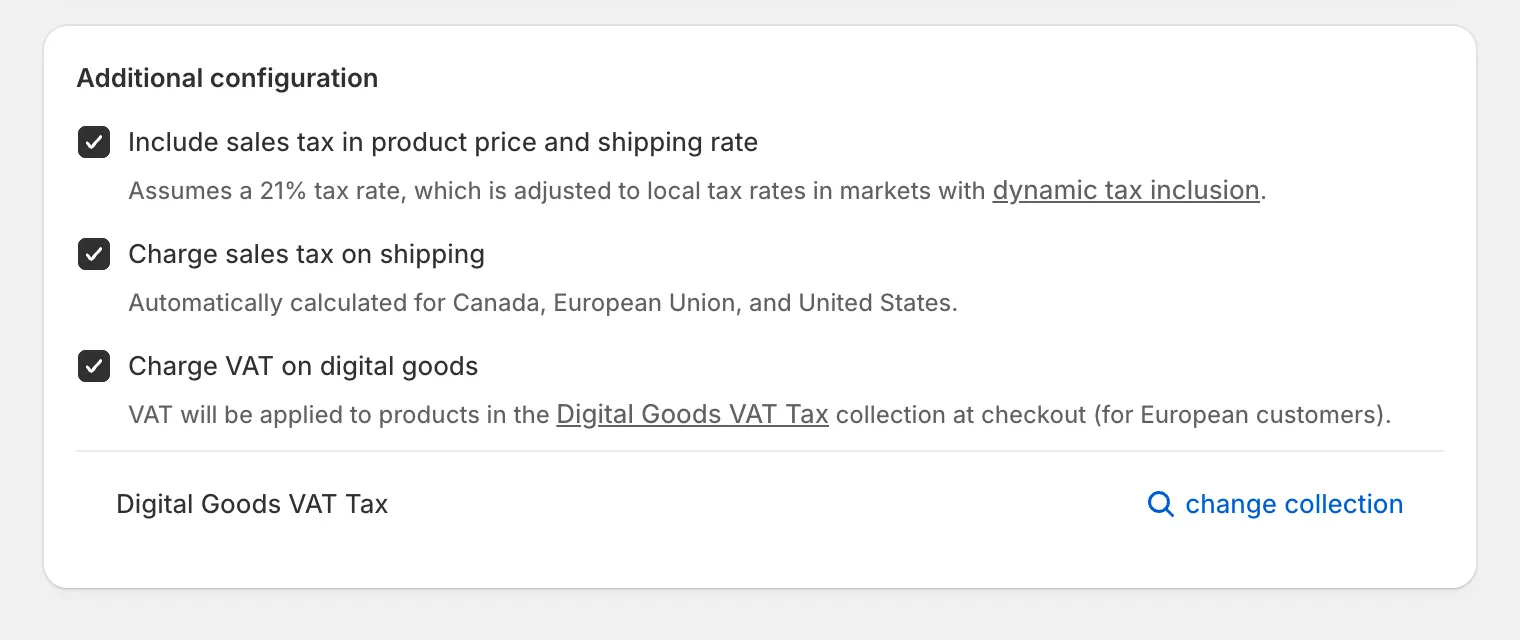
Section titled “Where to set it”- For the whole store: open Settings > Taxes and duties, and under Additional configuration turn Include sales tax in product price and shipping rate on or off. The setting covers shipping rates as well as products.
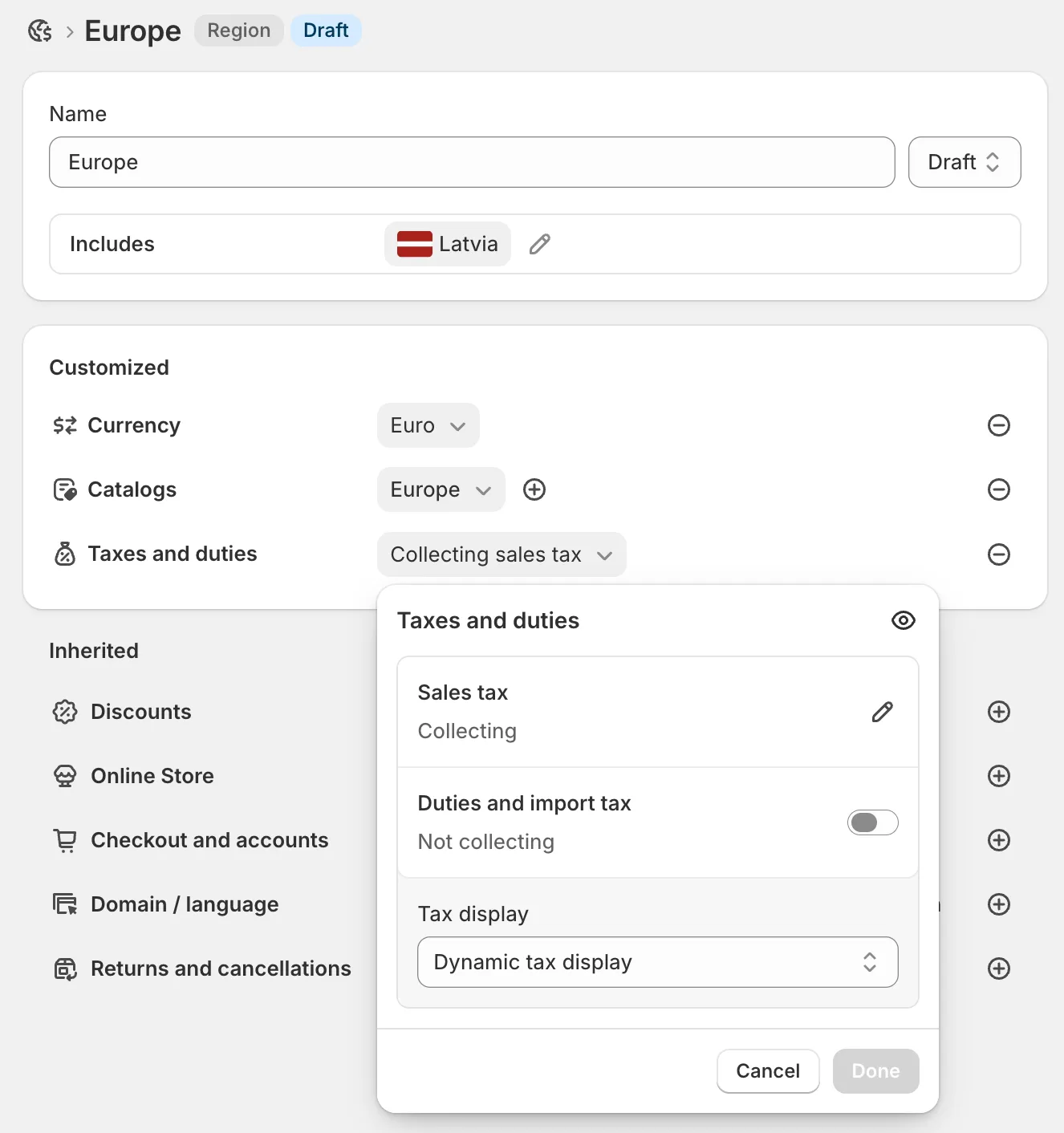
- Per market: open Markets in the Shopify admin sidebar, open the market, click Taxes and duties, and set Tax display to Dynamic tax display, which includes or excludes tax based on the customer’s region. With it, a tax-inclusive store shows a customer outside your tax area the price without VAT, instead of charging the same gross amount with no VAT in it. EU stores selling to customers outside the EU usually want this.
Which to pick
Section titled “Which to pick”Consumer prices in the EU have to be shown with VAT included, so a store selling mainly to consumers keeps Include sales tax in product price and shipping rate on. A store selling mainly to businesses often turns it off, so business buyers see net prices and the VAT is added at checkout.
How this shows on your invoice
Section titled “How this shows on your invoice”Invoice Inn reads the order’s pricing mode and works the other number out from it.
- Tax included: the price paid is the gross unit price, and the net is the gross minus the VAT Shopify charged. A EUR 20 line at 20% prints as EUR 16.67 net, EUR 3.33 VAT, EUR 20 total.
- Tax excluded: the price is the net unit price, and the gross is the net plus VAT. The same line prints as EUR 20 net, EUR 4 VAT, EUR 24 total.
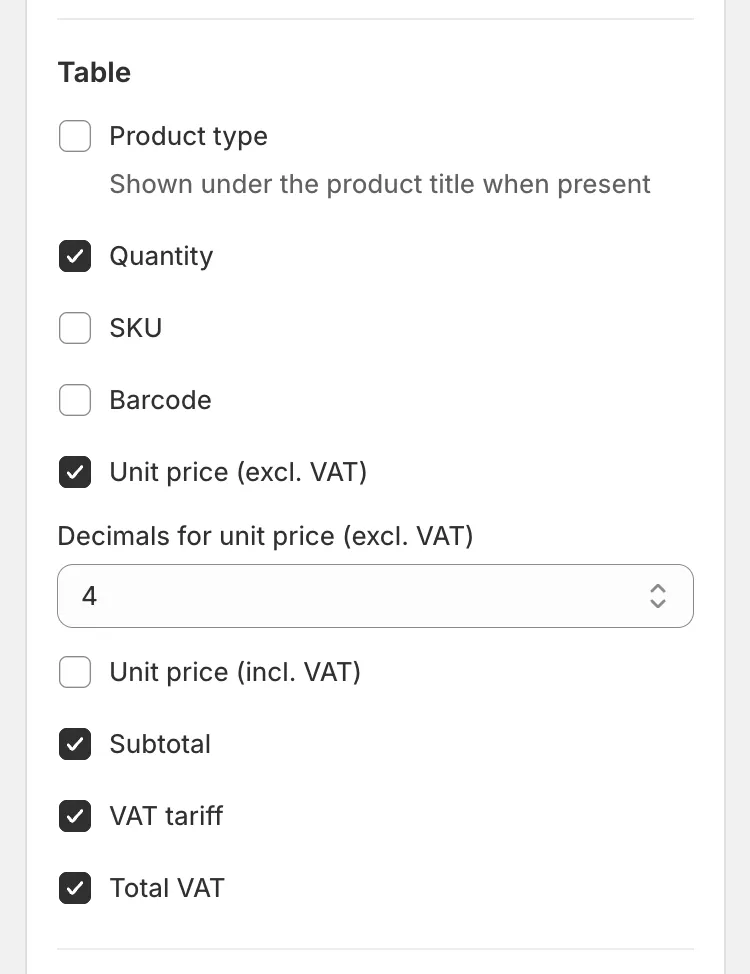
Turn on both Unit price (excl. VAT) and Unit price (incl. VAT) under Customize > Content so both numbers are on the page whichever mode the store uses. Tax-inclusive prices divide into awkward nets, which is what the Decimals for unit price (excl. VAT) setting is for: pick 3 or 4 decimals when 2 makes the line look like it does not add up.
Good to know
Section titled “Good to know”One behaviour exists only in tax-included mode: an order from an EU business customer with a VAT number, on which Shopify still charged VAT, is invoiced at 0% with the amount paid treated as the net. Collect VAT numbers and apply the reverse charge explains when that happens.