

Add a footer note to your documents
The text under Customize > Content > Footer prints at the end of every invoice and credit note, right below the totals. Use it for bank details, a legal mention, a returns address or a thank-you line. If you are looking for the small “Invoice Inn” mark at the bottom of Free plan documents, that is a different thing: see Remove the Invoice Inn footer.
Add the note
Section titled “Add the note”- Open Customize and switch to the Content tab.
- Under Footer, type your text in Additional notes. Line breaks are kept, and the note can run to 1,000 characters.
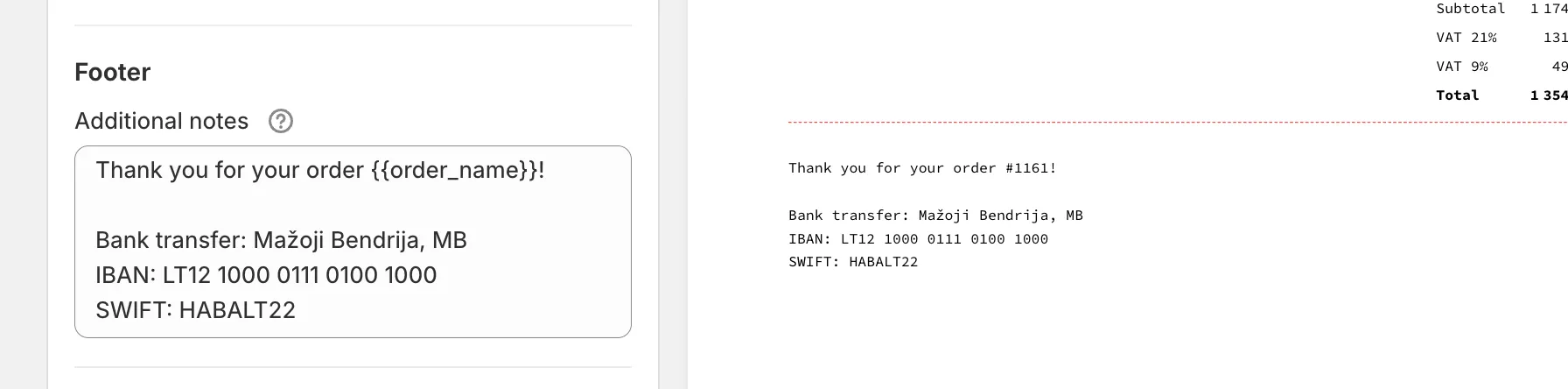
- Click Save. You will see “Preferences saved”.
The note applies to documents generated from now on. To change the note on one document that already exists, open it with Edit and change Notes there. The note can be changed but not emptied.
Variables
Section titled “Variables”The question-mark icon next to Additional notes lists the variables the note accepts. They are filled in when each document is generated.
| Variable | Prints |
|---|---|
{{order_name}} |
The order name as Shopify shows it, for example #1001. |
{{order_number}} |
The order number without the prefix, for example 1001. |
{{tracking_info}} |
One line per shipment with the carrier, the tracking number and a link. Only on the first invoice of an order, and only if the order was fulfilled before the invoice was generated. |
{{due_date}} |
The payment due date. Only on invoices, and only when Display due date is on. Empty when the invoice has no due date. |
{{delivery_date}} |
The date of supply. Only on invoices, and only when Display date of supply is on. Empty when the invoice has no date of supply. |
A new store starts with Shopify order {{order_name}} as the note.
How this shows on your invoice
Section titled “How this shows on your invoice”The note is the last block of the document body, under the totals, in the document’s body font. It is not pinned to the bottom of the page, so a short invoice has the note close to the totals and a long one pushes it down or onto the next page.
If Display payment method is on, the payment line prints between the totals and your note on the first invoice of a paid order. See Show the payment method on invoices.
On a credit note, a line referencing the original invoice prints above your note, and {{tracking_info}} is left out. On a reverse charge invoice, the legal note is added below your text.
Good to know
Section titled “Good to know”- The note is one text for the whole store. It does not change with the document language, so write it in the language your customers read, or in two languages one after the other.
- Bank details in the note are printed on every document, including credit notes. If that is not what you want, keep them out and send payment instructions by email instead.