

Add a due date to your invoices
An invoice can print a payment due date under its issue date. The date follows the payment terms Shopify holds on the order when there are any. Otherwise it is the issue date plus a number of days you choose. Due dates are off by default and never appear on credit notes.
Turn on due dates
Section titled “Turn on due dates”- Open Customize and stay on the Content tab.
- Under Header, tick Display due date.
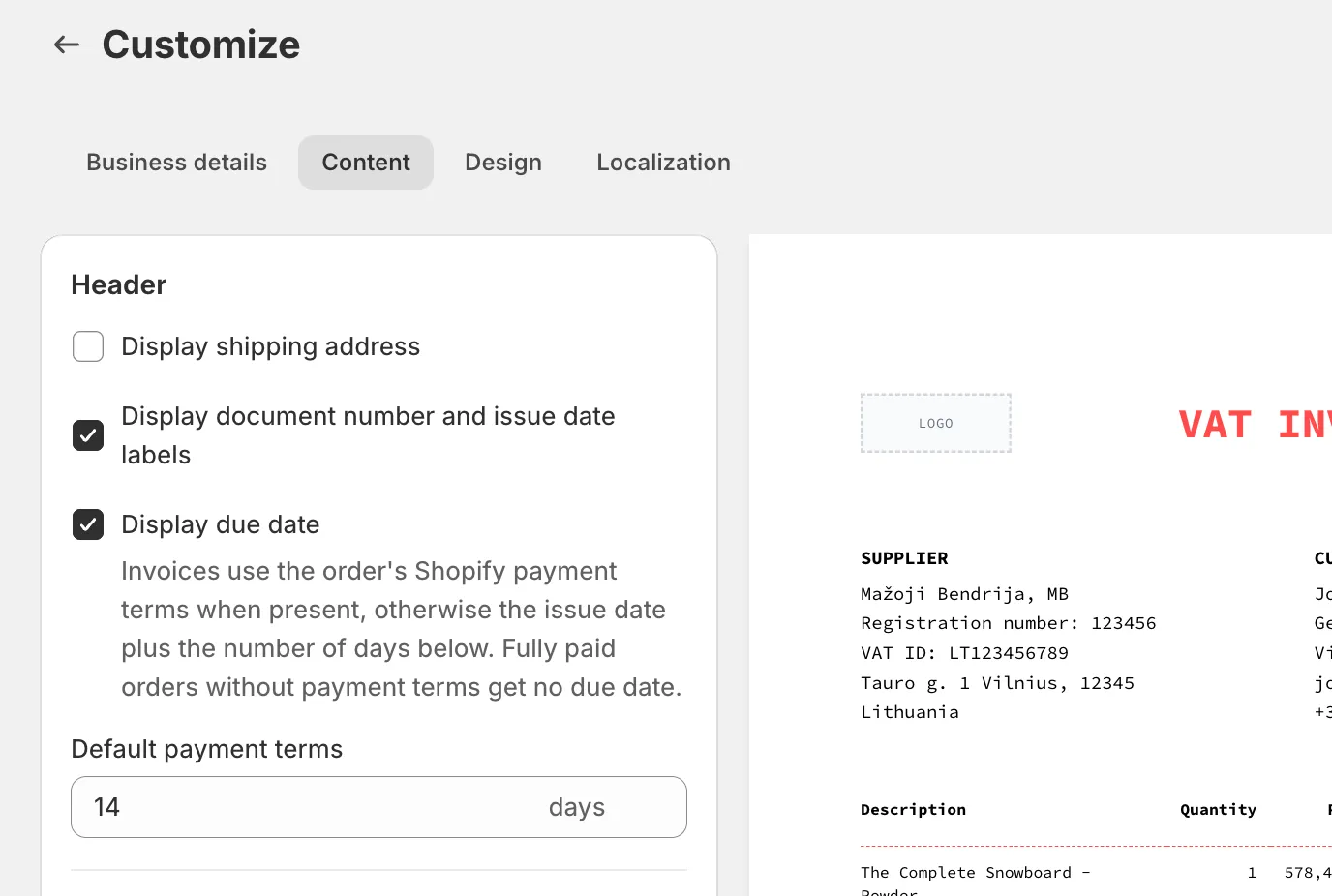
- In Default payment terms, enter the number of days a customer has to pay, from 0 to 365. The field starts at 14. Enter 0 for invoices due on the day they are issued.
- Click Save. The preview next to the settings shows a due date on the sample invoice straight away.
Where the due date comes from
Section titled “Where the due date comes from”For each invoice, the app checks the order in this order and stops at the first match.
| The order has | Due date printed |
|---|---|
| Shopify payment terms set to due on receipt | The issue date of the invoice. |
| Any other Shopify payment terms with a due date, such as net 30 or a fixed date | The due date Shopify holds, in your store’s timezone. |
| Payment terms that have no date yet, for example due on fulfillment for an order that is not fulfilled | The issue date plus your Default payment terms. |
| No payment terms, and is not fully paid | The issue date plus your Default payment terms. |
| No payment terms, and is fully paid | No due date. There is nothing left to fall due. |
Payment terms are a Shopify feature. You set them when you create a draft order with payment due later, and Shopify shows them on the order page. Invoice Inn reads them; it does not create or change them.
The due date is worked out once, when the invoice is generated, from the issue date it gets then. Changing the settings afterwards affects future invoices only.
Change the due date on one invoice
Section titled “Change the due date on one invoice”- Open Documents and click Edit on the invoice’s row.

- Under Document date, fill in the Due date field below the Date field. Leave it empty to remove the due date from that invoice.
- Click Save. The PDF is regenerated with the new due date.
Changing the Date of an invoice does not move its due date. Set both fields if you want them to keep their distance.
How this shows on your invoice
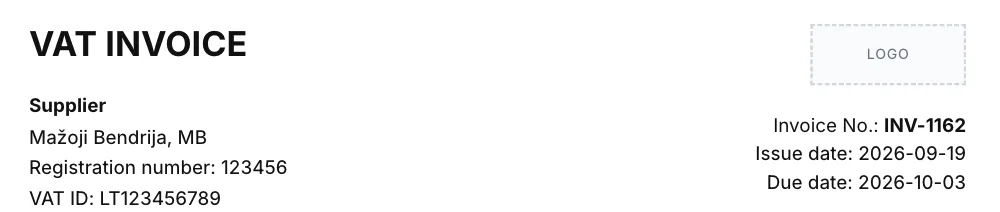
Section titled “How this shows on your invoice”The header prints a Due date line under the issue date, in the date format chosen under Customize > Localization. The label follows the document language, and you can rewrite it under Customize > Localization in the Translations card, under Titles.
You can also print the date in the note at the bottom of the invoice with the {{due_date}} variable under Customize > Content > Footer > Additional notes. It is filled in on invoices only, and stays empty when the invoice has no due date.
Good to know
Section titled “Good to know”- Credit notes never carry a due date, and the Edit dialog of a credit note has no Due date field.
- Invoice Inn does not track payments. A due date that has passed does not change the document, and no reminder is sent.
- The due date is not in the CSV export and is not a filter on the Documents page. It lives on the PDF and in the Edit dialog.
- Reading payment terms needs a permission that Invoice Inn asks Shopify for. If you installed the app before due dates existed, Shopify asks you to approve the new permission when you next open the app. Until then, the app cannot see the terms: a paid order gets no due date, and an unpaid one gets the issue date plus your Default payment terms.