

Show the payment method on invoices
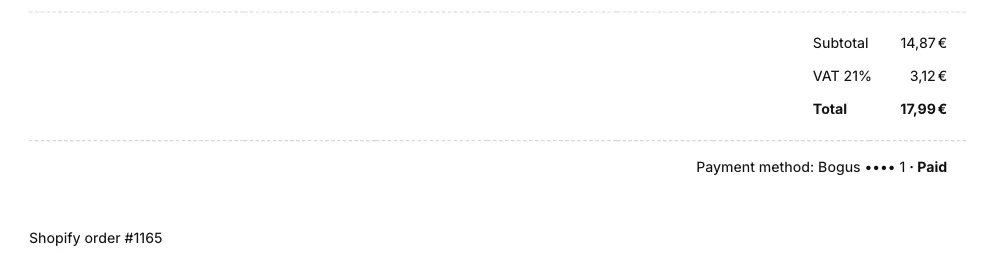
An invoice can print how the order was paid, for example “Payment method: Visa •••• 4242 · Paid”, right under the totals. The line appears only on the first invoice of an order, and only when the order was fully paid by the time the invoice was generated. It is off by default.
Turn it on
Section titled “Turn it on”- Open Customize and switch to the Content tab.
- Under Footer, tick Display payment method. It sits above Additional notes.
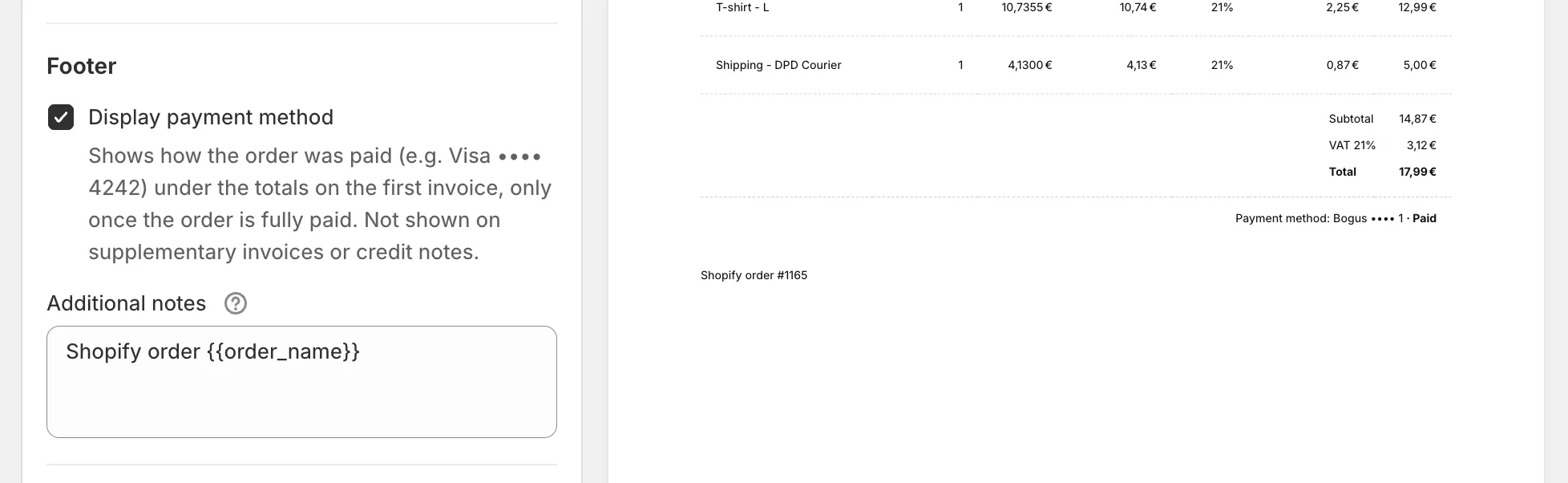
- Click Save. You will see “Preferences saved”.
The preview shows the line on your latest order when that order is paid. The setting applies to invoices generated from now on.
What the line shows
Section titled “What the line shows”The app reads the order’s payments from Shopify and names each method used, never an amount. When an order was paid in more than one way, the methods are listed one after the other, separated by commas.
| The order was paid with | The invoice prints |
|---|---|
| A card | The card brand and its last four digits, for example Visa •••• 4242. |
| A card through a wallet such as Apple Pay, Google Pay or Shop Pay | The wallet with the card in brackets, for example Apple Pay (Visa •••• 4242). |
| Shop Pay Installments or a local payment method | The method’s name as Shopify reports it. |
| A manual method such as bank deposit or cash on delivery, marked as paid in Shopify | The method the customer chose at checkout, for example Bank Deposit. If Shopify does not know one, Manual. |
| Anything else, such as a gift card or PayPal | The payment provider’s name as Shopify shows it on the order. |
Amounts are left out on purpose. After an edit or a refund, what was charged no longer matches what a given invoice bills, and a second figure next to the totals would only confuse the customer.
How this shows on your invoice
Section titled “How this shows on your invoice”The payment line prints right-aligned under the totals, above your footer note. “Payment method” and “Paid” follow the document language, and you can rewrite both under Customize > Localization in the Translations card, under Titles, as Payment Method Label and Paid Status Label.
When the line is left out
Section titled “When the line is left out”- The order was not fully paid when the invoice was generated. An unpaid bank deposit, a cash on delivery order or an order on payment terms gets no payment line, so an invoice never claims a payment that has not happened. The invoice keeps the order as it was when it was generated, so marking the order as paid later does not add the line to an invoice that already exists.
- Supplementary invoices and credit notes. Only the first invoice of an order carries the line.
- Invoices generated before the feature existed. They do not hold the payment details, so they never show it.