

Export documents as PDF or CSV
Every document on the Documents page can be downloaded: one at a time as a PDF, a selection as a ZIP of PDFs or as a CSV, or a whole calendar month in one file from the Export menu. All of this works on every plan, including Free.
Download one document
Section titled “Download one document”- Open Documents and find the row. Type a customer or order name in the search box, or switch to the Invoices or Credit notes tab.
- Click the Download icon at the end of the row. The PDF is saved under the file name pattern set in Customize > Content > File names.
The Download translated icon next to it saves the same document with its labels in a language you pick, marked as a translated copy. It is available on the Starter plan and above.
Export a selection
Section titled “Export a selection”- Open Documents. Narrow the list first if you want to: the Invoices and Credit notes tabs, the search box, and the Document date filter with Today, Yesterday, This month, Last month, Last year or a Custom range with a Starting and Ending date.
- Tick the rows you want. The checkbox in the table header selects every row on the page.
- To go beyond the page, click Select all followed by the document count. The header then reads “All … documents selected”, and the export takes every document that matches the current tab, search and date filter, not only the rows on screen.
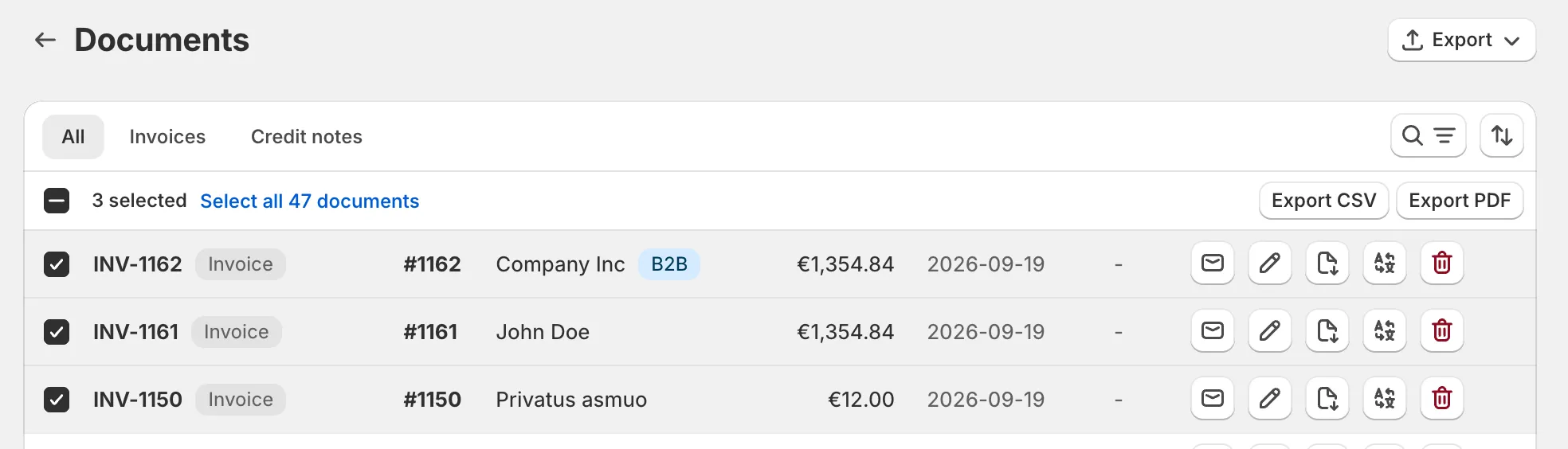
- Click Export CSV for a spreadsheet with one row per document, or Export PDF for a ZIP archive with one PDF per document.
- The browser saves the file as documents_export.csv or documents.zip. When you selected all documents inside a date range with both a starting and an ending date, the two dates are in the file name instead.
Export a whole month
Section titled “Export a whole month”- Open Documents and click Export in the page header.
- Under Documents, choose All Documents. The Export All Documents dialog opens.
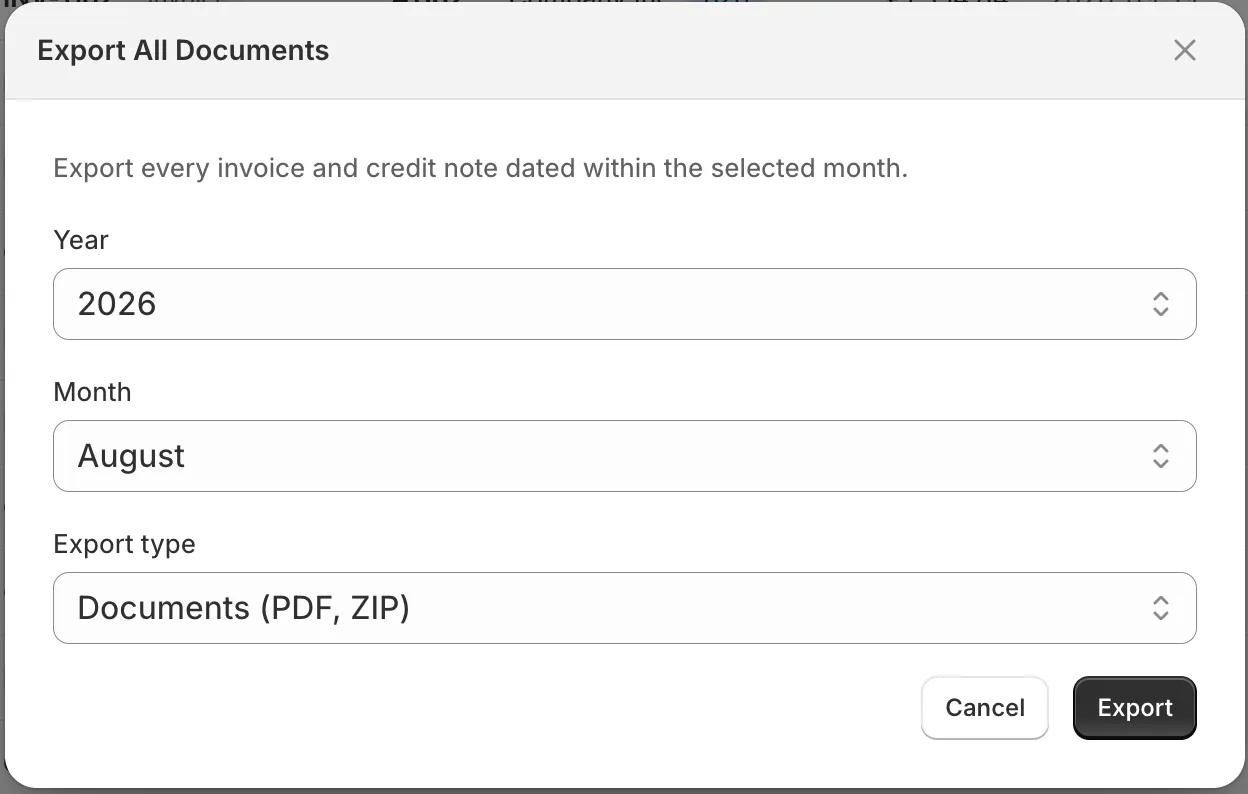
- Pick the Year (the current year and the two before it) and the Month.
- Under Export type, choose CSV or Documents (PDF, ZIP).
- Click Export. You will see “Export download started”, and the file is saved with the first and last day of the month in its name.
The month is matched on the document date and includes both invoices and credit notes. It is the same export as selecting every document of that month by hand, without the filtering.
What the CSV contains
Section titled “What the CSV contains”The CSV has one row per document and these columns, in this order:
| Column | What it holds |
|---|---|
| Document Type | Invoice or Credit Note |
| Number | The document number |
| Order | The Shopify order name, such as #1042 |
| Currency | The currency the amounts on that row are in |
| Total Amount | The document total |
| Net Amount | The total before VAT, added up across every VAT rate on the document |
| Vat Amount | The VAT, added up the same way |
| Date | The document date as YYYY-MM-DD |
| Customer Name | The name on the document |
| Customer Address | Street, city and postal code, separated by commas |
| Customer Country Code | The two-letter country code |
| Customer Vat Id | The customer’s VAT ID, when the document has one |
| Customer Registration Code | The customer’s company registration number, when the document has one |
The file is comma separated and UTF-8 with a byte order mark, so Excel opens accented names correctly without an import wizard. Amounts are in the currency the customer paid in. A store that sells in several currencies gets rows in more than one currency in the same file, which is what the Currency column is for. Net Amount and Vat Amount are empty on a document that has no tax breakdown.
Good to know
Section titled “Good to know”- Export PDF is a ZIP. Each PDF inside is the document’s current file, named by the pattern under Customize > Content > File names. Editing a document regenerates its PDF, so an export made afterwards carries the corrected version.
- A document whose PDF is not ready yet shows a greyed-out Download icon. It is left out of a ZIP until the file exists, but its row is still in the CSV.
- Deleted documents are never exported. They are missing from the ZIP and the CSV alike.
- Large exports stream straight to disk. Keep the tab open until the download finishes. If something goes wrong before it starts, the app shows the reason in a message instead of saving a broken file.
- The Free plan footer stays. A PDF generated on the Free plan carries the Invoice Inn line at the bottom, in the export too. Remove the Invoice Inn footer explains how to lift it.
- For a recurring archive without clicking, turn on scheduled exports, available on the Pro plan and above.