

Change the email text and language
The subject and message of the email that carries your invoices and credit notes are set under Automations > Email content & language, once per language. The card also decides which language each customer gets. It works on every plan, and a language you never touch still goes out translated, not in English.
Choose the language
Section titled “Choose the language”- Open Automations in Invoice Inn and expand Email content & language.
- Under Default email language, pick a language. The list holds the languages your store publishes in Shopify plus your document language; it is not the full list of 24 the app supports. Publishing a language in Shopify is what adds it here.
- Leave Match each customer’s language automatically ticked to send each customer the email in the language they used at checkout, when it is one the app supports, and the default language otherwise. Untick it to send every email in the default language.
- Click Save in the top bar. You will see “Preferences saved”.
The badge on the card reads Auto while matching is on, and the name of the default language when it is off. Only the email follows the customer’s language. The attached PDF is in your document language; see Translate your documents.
Rewrite the subject and message
Section titled “Rewrite the subject and message”- Under Email content, click the tab of the language you want to edit. There is one tab per language in the Default email language list.
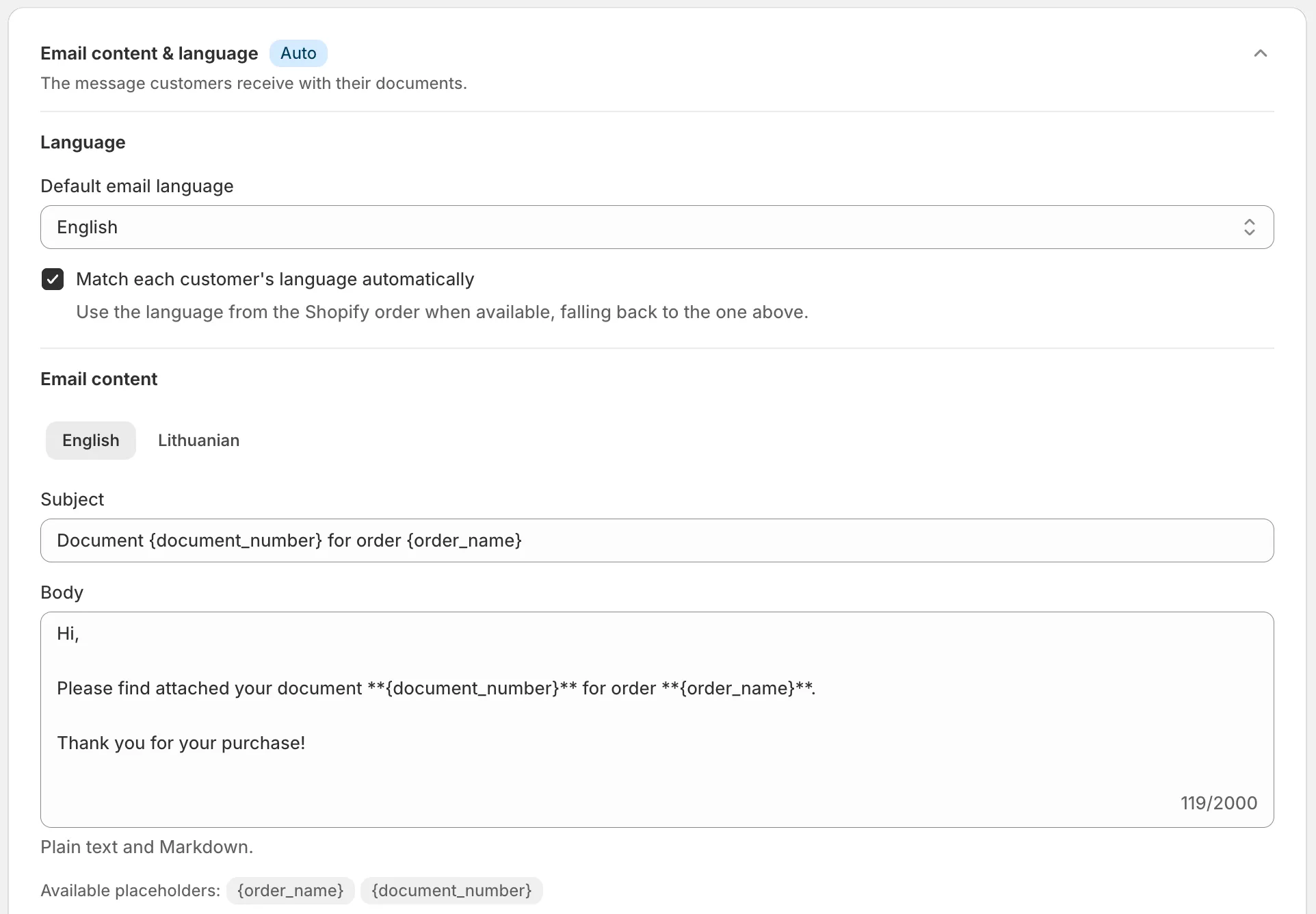
- Edit Subject (up to 200 characters) and Body (up to 2,000). The fields show the app’s default text for that language until you change it. The English defaults are “Document {document_number} for order {order_name}” and a short message that thanks the customer and names the attached document.
- Use the two placeholders where you want the order name and the document number:
{order_name}prints the Shopify order name, such as #1001, and{document_number}the invoice or credit note number. Click a badge under Available placeholders to copy it. Any other word in curly braces is rejected when you save. - Repeat for each language tab you want to customise. A tab you leave alone keeps the app’s translation.
- Click Save.
The Live preview on the Email branding card next to it shows the message in the language of the tab you have open, with sample values filled in.
To go back to the default text, clear the field and save. Text identical to the default counts as no change too.
Formatting the message
Section titled “Formatting the message”- The body accepts plain text and Markdown:
**bold**,_italic_,[a link](https://example.com)and lists. Pressing Enter once starts a new line in the email; you do not need a blank line. - HTML tags are shown as typed, not rendered. Write Markdown instead.
- The subject is plain text. Markdown in it is printed literally.
Send a test
Section titled “Send a test”Under Test email, enter a Test recipient and click Send test email. The test uses the subject and body of the language tab you have open, saved or not, together with your saved logo and accent colour and any saved attachments. It carries a sample order instead of a real PDF, and says so at the top. You can send up to five tests a minute.
Good to know
Section titled “Good to know”- Everything around your text is fixed: below the message, every email shows an Item and Amount table for the document with a Total row, then the line “This document is attached as a PDF.” Neither can be removed or reworded here, but their labels follow the email’s language.
- The same subject and body are used for invoices and credit notes. Use
{document_number}rather than the word “invoice” if you send both. - The copy sent to your own address under Email delivery > Internal emails and the Send email action on Documents use this text and language logic as well.
- Language matching reads the language the customer had at checkout, as stored on the Shopify order. A customer whose language is not one of the 24 the app supports gets the default language.