

Sync documents to Google Drive and Dropbox
Connect Google Drive or Dropbox under Automations > Integrations and every invoice and credit note is uploaded as a PDF the moment it is created, into a folder named Invoice Inn, sorted by month. There is nothing to schedule and nothing to download. It is available on the Starter plan and above.
Before you start
Section titled “Before you start”- You need the Google or Dropbox account the files should land in, and you have to be able to sign in to it from the browser you are using, because connecting opens the provider’s sign-in page in a new tab.
- Only documents created or edited after you connect are uploaded. Documents that already exist are not copied over. To get older documents out of the app, use Export documents as PDF or CSV.
Connect an account
Section titled “Connect an account”- Open Automations in Invoice Inn and expand Integrations. The badge reads Not connected until an account is linked.
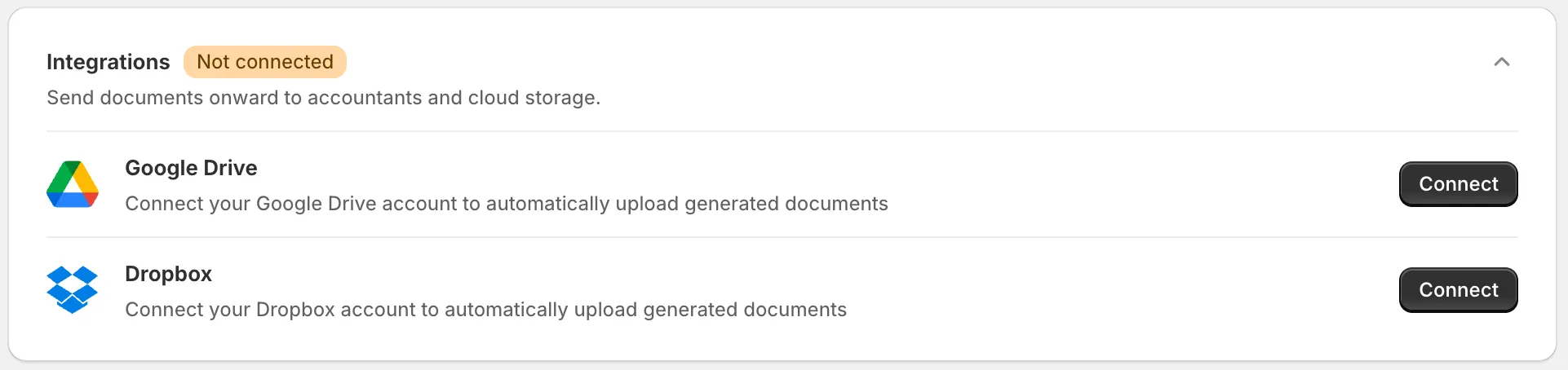
- Click Connect next to Google Drive or Dropbox. A new browser tab opens with the provider’s sign-in and permission screen.
- Sign in and allow access. Google Drive asks for permission to see and manage only the files the app creates, plus your email address and profile; it cannot read the rest of your Drive. Dropbox gives the app its own folder under Apps.
- The new tab returns to Invoice Inn with “Google Drive connected” or “Dropbox connected”. Close it and refresh the tab you started from: the row now reads “Documents will be automatically uploaded to the Invoice Inn folder”, with the folder name linking to it, and the card badge shows the provider in green.
There is nothing to save. A connected account syncs; there is no separate on/off switch, and no setting for the folder name or location. You can connect both providers, and every document then goes to both.
What lands in the folder
Section titled “What lands in the folder”- Where. Google Drive gets a folder named Invoice Inn at the top of your Drive. Dropbox gets Apps > Invoice Inn. Inside, one subfolder per month, named like
2026-09, holds the PDFs. There is no split by year or by document type. - Which month. The document’s date decides the folder, not the day it was uploaded. A document you backdate lands in that month’s folder.
- What. Every document: first invoices, supplementary invoices and credit notes. Unlike customer emails, there is no choice of kinds.
- File name. The PDF is named by the File names templates under Customize > Content, so by default
INV-#1001-1.pdffor an invoice andCR-#1001-1.pdffor a credit note. Changing the template renames files uploaded from then on. - Edits. Editing a document replaces the file: the previous copy is removed and the corrected PDF uploaded in its place. A link you shared to the old file stops working.
- Deletes. Deleting a document in Invoice Inn removes its copy from the folder too, together with the later documents on the same order that the delete takes with it. See Delete a document.
On Documents, the Sync column shows a Google Drive or Dropbox icon on each row that has a copy in the cloud, and “-” on rows that have none.
Disconnect
Section titled “Disconnect”Click Disconnect on the provider’s row. It takes effect immediately, without a confirmation step. The app stops uploading and forgets the account; files already uploaded stay in your Drive or Dropbox untouched. Connecting again shows the full permission screen each time, which is expected.
Good to know
Section titled “Good to know”- The Sync column only tells you that a copy exists. There is no “failed” state and no retry button. If a row stays at “-” after a few minutes, or files stop arriving because you removed the app’s access in your Google or Dropbox settings, the card still reads as connected: click Disconnect, then Connect again, and edit any document that is missing to upload it.
- Uploads run in the background and are retried a few times over the following minutes if the provider is slow, so a document can show “-” briefly before the icon appears.
- Cloud sync and scheduled exports are separate. Sync copies each file as it is created, on Starter and above. Schedule automatic exports bundles a whole day, week or month into one ZIP, on Pro and above.
- Uninstalling the app leaves the uploaded files where they are.