

Translate your documents
Your invoices and credit notes print in one document language, chosen under Customize > Localization from the 24 EU languages Invoice Inn supports. Every label on the document, from “Invoice” to “Total”, can be rewritten for that language in the Translations card below, on every plan. A copy of any document in another language is one click on Documents, on the Starter plan and above.
Set the document language
Section titled “Set the document language”- Open Customize and switch to the Localization tab.
- Under Document language, pick the language. The app preselects one from your store’s country when you first set up.
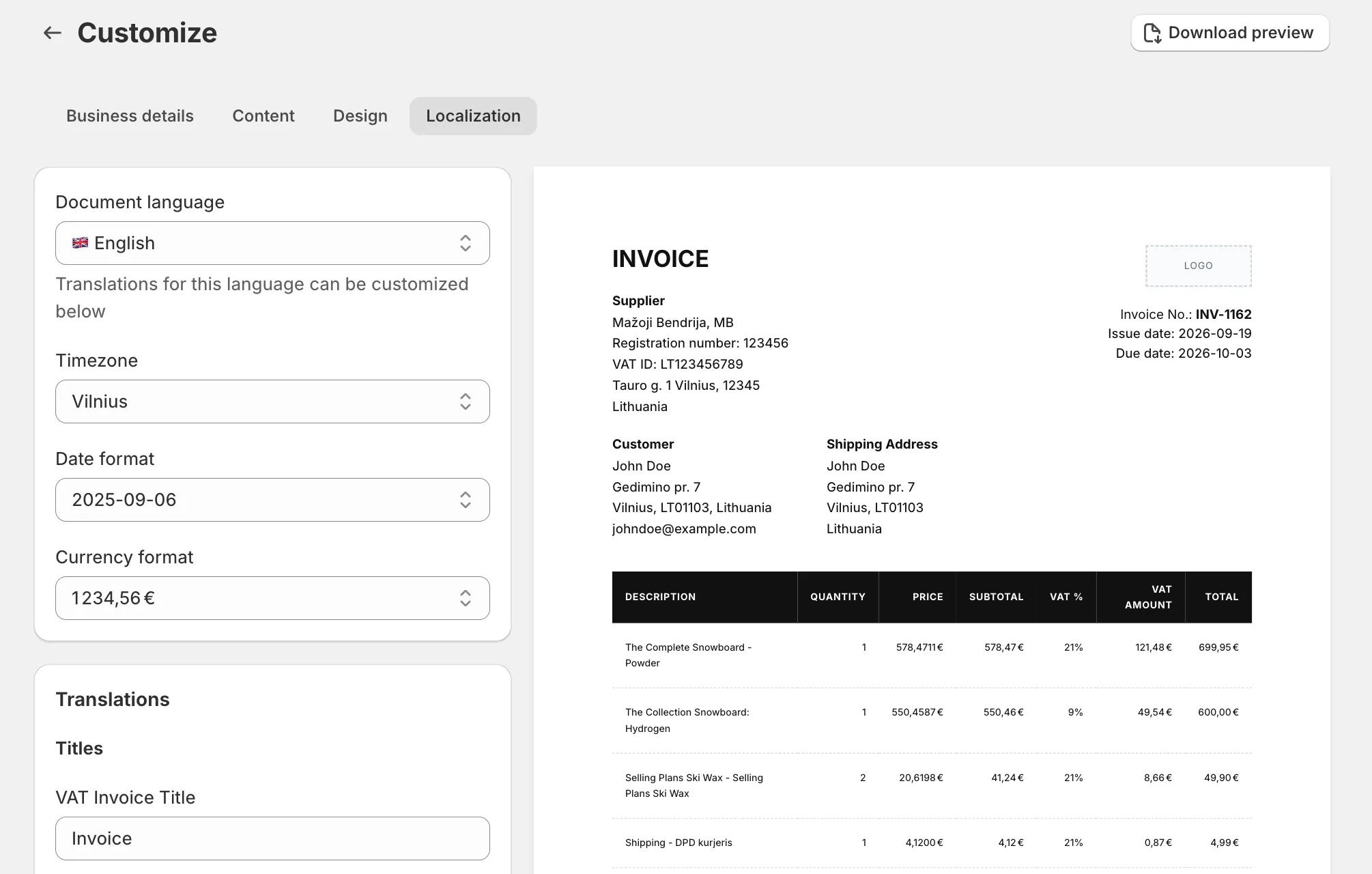
- Check Date format and Currency format while you are here. Month names in the long date formats print in the document language, and the currency samples use your store’s currency. Change the document date covers the timezone and date format in detail.
- Click Save. You will see “Preferences saved”.
The language applies to documents generated from now on. Every document uses the same language: there is no per-customer document language. The email that delivers the document has its own language rule, set under Automations > Email content & language; see Change the email text and language.
Rewrite a label
Section titled “Rewrite a label”The Translations card edits the labels for whichever language is selected under Document language. Switch the language above to edit another one.
- Under Translations, find the label in its group. Titles holds the document titles and the number, date, payment method and paid labels, Credentials Labels the registration and VAT number labels, Line Items the table column headings, Totals the rows under the table, and Other the shipping and return fee lines, the “Private individual” mention, the credit note reference line and the two legal notes for reverse charge and intra-Community supply.
- Type the wording you want in place of the current text. Fields show the app’s built-in translation until you change them.
- Click Save. Your wording is saved for this language only.
There is no reset button. To go back to the app’s wording, retype it; an emptied field prints nothing.
Download a document in another language
Section titled “Download a document in another language”- On Documents, click the Download translated icon on the row.

- Pick the Language and click Download.
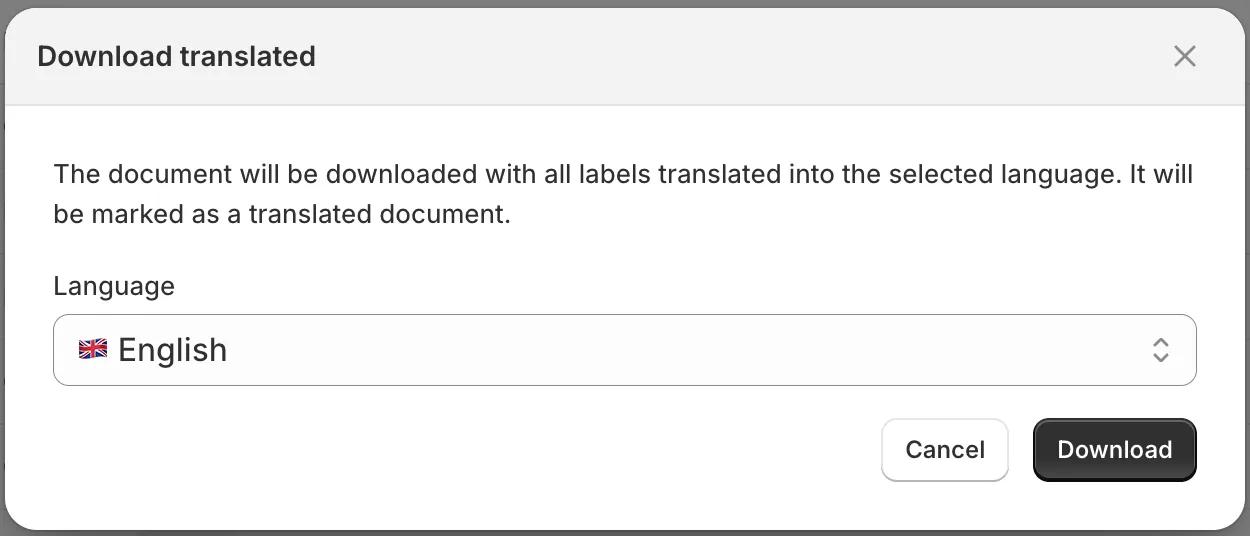
The PDF is rebuilt with every label in that language, using your custom wording for it if you set any, and carries the note “This is a translation of the original document.” at the bottom. It keeps the same number and dates, and the file name gets the language code, for example INV-#1001-1-de.pdf. Nothing is stored: the original document is unchanged, and the translated copy exists only as the file you downloaded. This action is available on the Starter plan and above.
What is not translated
Section titled “What is not translated”- Product names, shipping method names and everything else that comes from the Shopify order print as they are. Only the “Shipping” prefix on the shipping line is translated.
- Customer and business details are printed as entered.
- The footer note under Customize > Content is one text for every language. Write it in the language your customers share, or keep it to something language-neutral such as bank details.