

Email invoices to your customers automatically
Turn on Email delivery and every invoice and credit note is emailed to the customer as a PDF attachment as soon as it is created, from your store’s name, in the customer’s language. It is off after setup, takes a minute to turn on, and works on every plan, including Free.
Before you start
Section titled “Before you start”- The email goes to the address on the order. An order with no customer email gets no email, and you can send the document yourself from Documents instead.
- Business customers are skipped by default. If you sell to companies, pick a different B2B customers option in step 5, or their invoices never go out.
- Turning email delivery on affects documents created from then on. Documents that already exist are not sent, unless you edit one afterwards: a document that has never been emailed is sent when it is saved.
Turn on email delivery
Section titled “Turn on email delivery”- Open Automations in Invoice Inn and expand Email delivery.
- Tick Send documents to customers automatically. The badge next to the card title reads On, but nothing is saved yet.
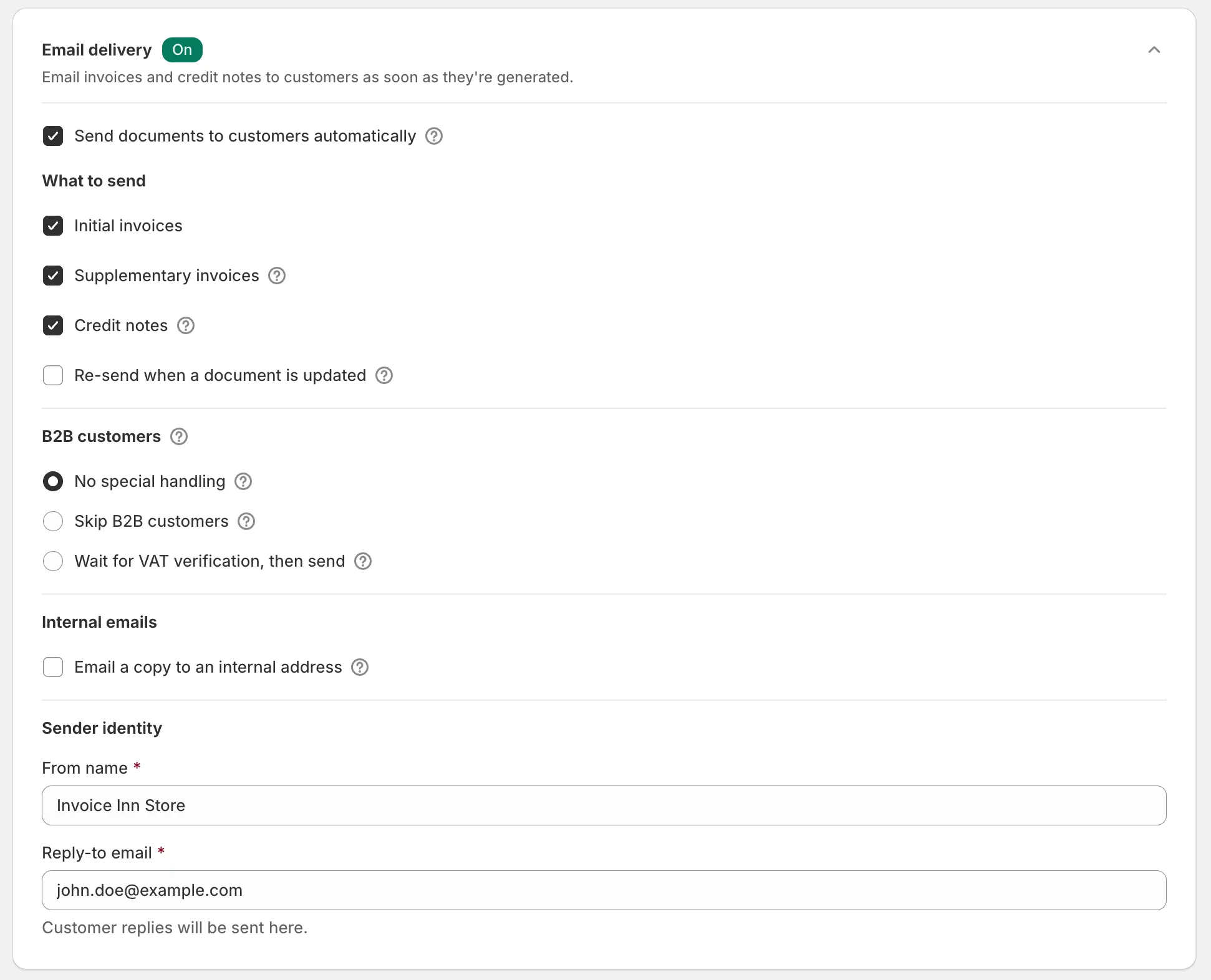
- Under What to send, leave Initial invoices, Supplementary invoices and Credit notes ticked, or untick the kinds you do not want emailed. All three are on by default.
- Tick Re-send when a document is updated only if a customer should get a fresh copy every time you edit a document they already received. It is off by default, and the caution at the end of this page explains why.
- Under B2B customers, choose how business customers are handled. The default is Skip B2B customers. The next section explains the three options.

- Under Sender identity, check the From name and Reply-to email. They are filled in with your store name and account email, and both are required while email delivery is on. Customer replies go to the reply-to address.
- Click Save in the top bar. You will see “Preferences saved”.
Choose what to send
Section titled “Choose what to send”Initial invoices is the first invoice for an order. Supplementary invoices are issued when charges are added after that invoice. Credit notes are issued on refunds. Each box is independent, so you can email invoices and keep credit notes for your own records.
The boxes decide what is emailed, not what is created. Which documents exist at all is set under Invoice generation on the same page. See Set up automatic invoices.
How business customers are handled
Section titled “How business customers are handled”A document is B2B when the order was placed through a Shopify company profile, or when the invoice carries a company name or a VAT ID. It gets the B2B badge on Documents, and the B2B customers option decides what happens to its email:
- No special handling emails business customers like everyone else.
- Skip B2B customers sends them no automatic email. This is the default. You can still send any document by hand from Documents.
- Wait for VAT verification, then send holds the email while the customer’s VAT ID is being checked against VIES, the EU’s VAT number database, and sends it once the check has finished, whatever the result. If the check could not be completed, the email stays held; editing the document runs the check again. A B2B document without a VAT ID is not held, because there is nothing to check.
The option changes only the email. The VAT on the document follows Collect VAT numbers and apply the reverse charge.
What the customer receives
Section titled “What the customer receives”One email per document, with the PDF attached. The sender shows your From name. The message goes out from Invoice Inn’s mail address, so replies land at your Reply-to email.
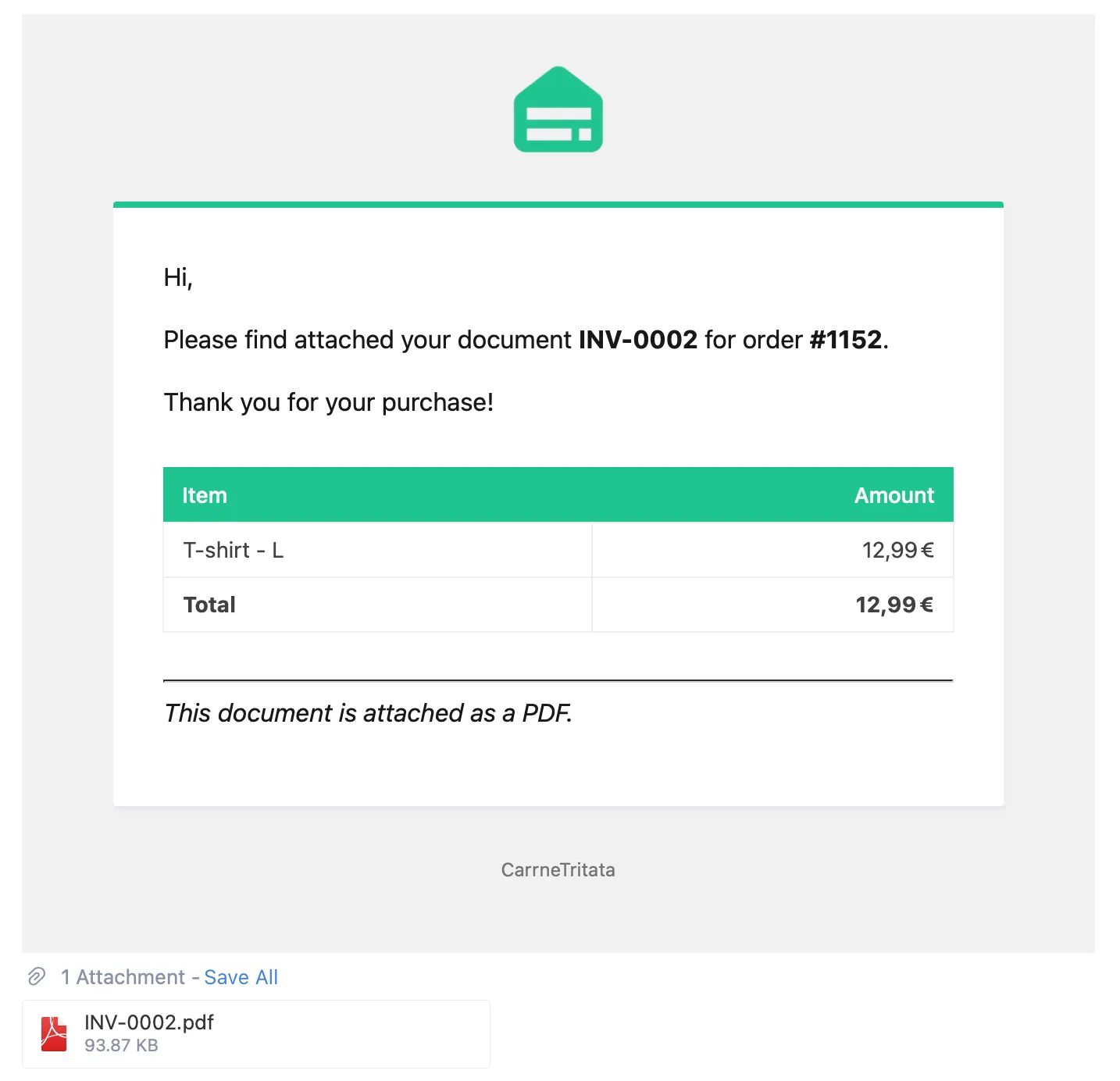
- Subject and message. The default subject is “Document {document_number} for order {order_name}”, and the message thanks the customer and names the attached document. Both can be rewritten per language under Email content & language.
- Language. With Match each customer’s language automatically ticked under Email content & language, the email follows the language the customer used at checkout when it is one of the 24 the app supports, and otherwise your Default email language. Untick it and every email uses the default language. Only the email follows the customer. The PDF is in your document language.
- Order summary. A short Item and Amount table with a Total row mirrors the attached document: an invoice lists what it bills, a credit note what was refunded.
- Header and footer. Your email logo sits at the top and links to your store; without a logo, your From name takes its place. The From name also appears in the footer. On the Free plan the footer carries a “Powered by InvoiceInn” line, which the Starter plan and above remove. Logo and accent colour are set under Email branding. See Add your logo.
- Attachments. The document PDF, plus any files you added under Additional attachments in Email content & language, such as your terms.
To see the result before a real order comes in, use Test email at the bottom of Email content & language: enter a Test recipient and click Send test email. The test uses a sample document and comes without the document PDF.
Good to know
Section titled “Good to know”- Each document is emailed to the customer once. If you already sent it yourself with Send email on Documents, automation does not send a second copy.
- A document you create by hand from Orders is emailed under exactly these rules. Once a document exists, it makes no difference whether automation or you created it.
- Send email on Documents ignores this card. It sends the same email, with the PDF, to whatever address you type, even when email delivery is off or the customer is B2B.
- A send that fails is retried, then given up. The app shows only that an email went out, as a “Sent to customer” mark on the document’s row, not whether it arrived, was opened or bounced, so when a customer says nothing arrived, send the document again from Documents.
- Email a copy to an internal address, under Internal emails on the same card, sends every invoice and credit note to your own address as a PDF. It works on its own, whether or not customer emails are on, and ignores the What to send boxes. It is sent again on every edit, whatever Re-send when a document is updated says.