

Schedule automatic exports
Scheduled exports build a ZIP archive of your documents after every day, week or month, list it on the Exports page for download, and email you when it is ready. They are available on the Pro plan and above.
Before you start
Section titled “Before you start”- You need the Pro plan or above. On a lower plan the card shows “Upgrade your plan to unlock this feature” with a View plans button.
- Archives are timed by the timezone set under Customize > Localization, so check that it matches your store.
Turn on scheduled exports
Section titled “Turn on scheduled exports”- Open Automations and expand Scheduled exports.
- Tick Create exports automatically.
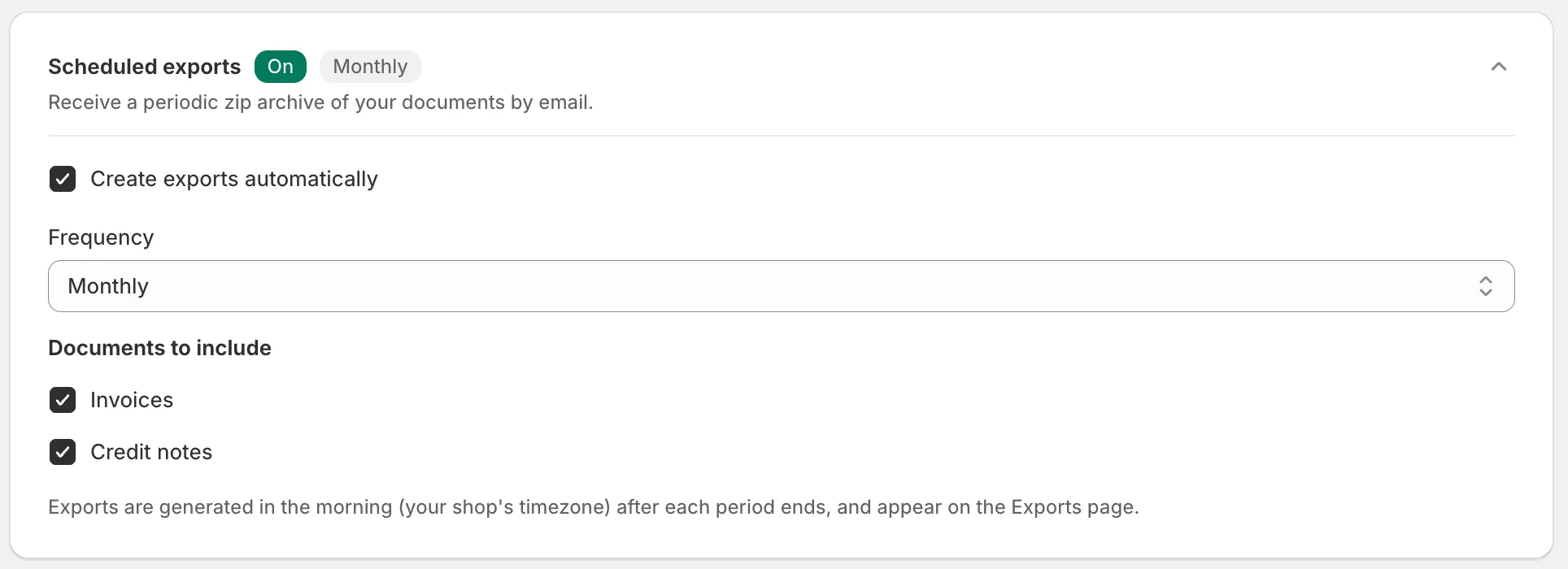
- Under Frequency, choose Daily, Weekly or Monthly.
- Under Documents to include, keep Invoices, Credit notes or both. At least one stays ticked.
- Click Save. You will see “Preferences saved”, and the card’s badge reads On with the frequency next to it.
When an archive is built
Section titled “When an archive is built”| Frequency | Built | Covers |
|---|---|---|
| Daily | Every morning | The previous day |
| Weekly | Monday morning | Monday to Sunday of the previous week |
| Monthly | The first morning of the month | The previous calendar month |
An archive is built at about 4 AM in your store’s timezone. The app checks once an hour, so it can land a little later than that. Documents are matched by their document date, and a period is exported once: a document you create or backdate into a period whose archive already exists is not added to it. Export it from Documents instead.
If no document falls in a period, nothing is built and no email is sent.
Download an archive
Section titled “Download an archive”- Open Exports. Each row shows the Period, Frequency, number of Documents, Status and Created date.

- Click Download on a row whose status is Completed. The ZIP has one PDF per document, named by the pattern under Customize > Content > File names. When two documents would share a name, the second gets its ID appended.
The email “Your Scheduled Export Is Ready” goes to your store’s email address, the one in your Shopify settings, with the period, the document count and a View Exports button. The archive itself is not attached; download it from Exports.
Good to know
Section titled “Good to know”- Archives are kept for 90 days from the day they were built, then deleted together with their row. Download anything you want to keep before then.
- Statuses. A new row starts as Pending, moves to Processing while the ZIP is built, and ends as Completed or Failed. A failed build is retried once on its own. If a row stays at Failed, export the period from Documents and get in touch with support.
- Changing the frequency applies from the next period. Archives already built stay on Exports with the frequency they were made with.
- Turning it off stops new archives. Existing ones stay on Exports until they expire, and the page then shows “Exports automation is disabled” with a Go to Automations button.
- Before the first archive exists, the Exports page tells you the date and time the first one will appear and which period it will cover, with a Change schedule button.
- Scheduled exports and cloud sync are separate. Integrations on the Automations page uploads each document to Google Drive or Dropbox as it is created, on the Starter plan and above. Scheduled exports bundle a period into one ZIP, on Pro and above. You can use both.