

Add your logo
The logo on your documents is uploaded under Customize > Design, and the logo in your customer emails under Automations > Email branding. They are two separate uploads, so a logo you add in one place does not appear in the other. The app does not pull your logo from your Shopify theme; upload it yourself.
Add the logo to your documents
Section titled “Add the logo to your documents”- Open Customize and switch to the Design tab.
- Under Logo, click Add logo or drop a file on the box. SVG, PNG, JPG and WEBP files up to 2MB are accepted.
- Drag Logo width to size it, from 30 to 250 pixels. The preview on the right updates as you drag.
- Click Save. You will see “Preferences saved”.
The bin icon next to the logo removes it. The logo applies to documents generated from now on; existing PDFs are not changed.
How this shows on your invoice
Section titled “How this shows on your invoice”Where the logo sits depends on the header layout you picked under Design. Layouts 1 and 3 put it at the top left, layout 2 at the top right next to the title, and layout 4 in the right column above the document number and date. The height follows the width you chose, so a wide, flat logo can be set wider than a square one without growing tall.
Add a logo to your emails
Section titled “Add a logo to your emails”- Open Automations and expand Email branding.
- Under Logo, click Upload logo. PNG and SVG files up to 2MB are accepted.
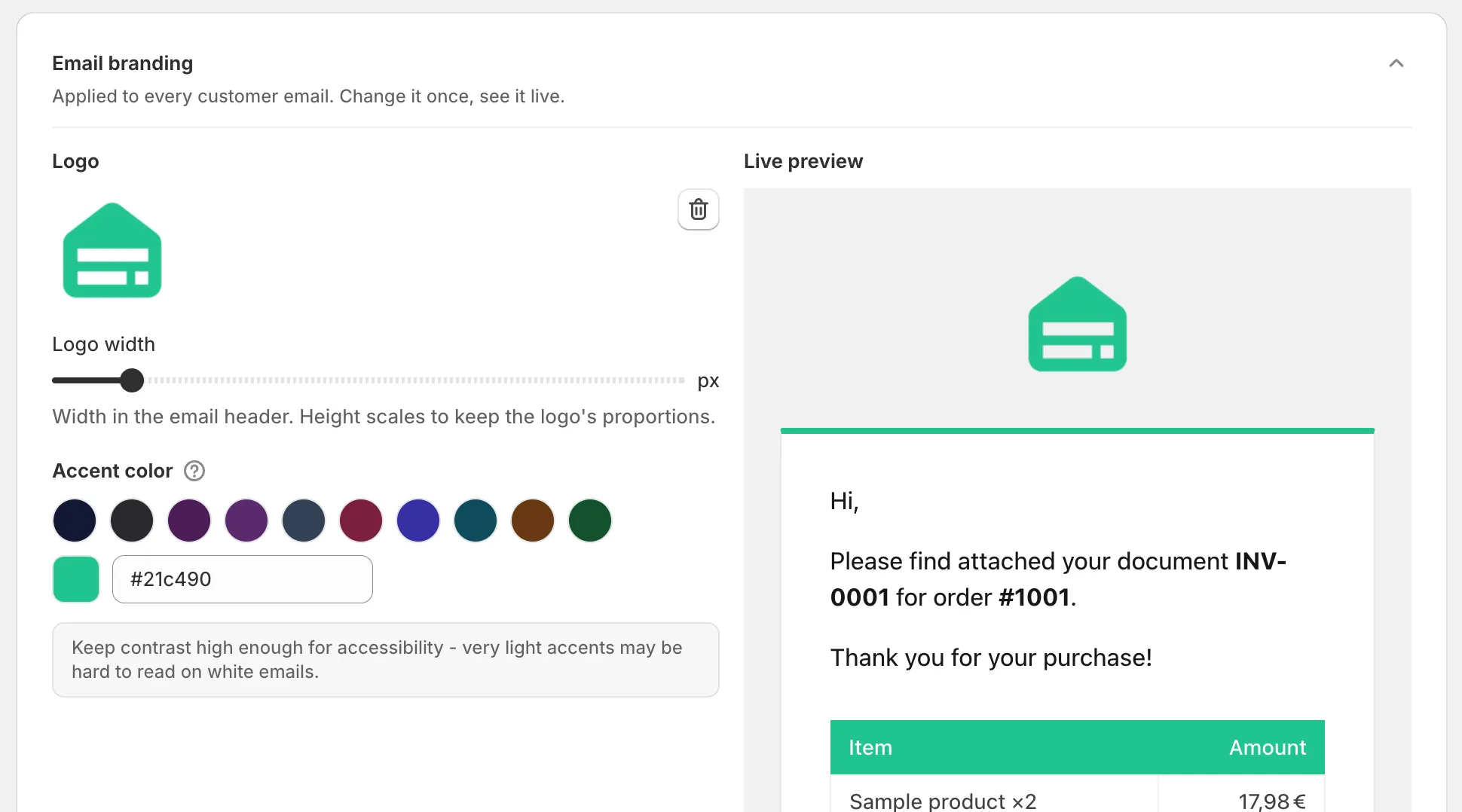
- Set Logo width, from 40 to 400 pixels. The Live preview next to the card shows the email header.
- Pick an Accent color for the top border and links, or type a hex value.
- Click Save.
Good to know
Section titled “Good to know”- A PNG with a transparent background works best on both documents and emails. An SVG stays sharp at any size.
- The logo is the same for invoices and credit notes and for every language.
- On the Free plan the email also carries a “Powered by InvoiceInn” line and the document a small Invoice Inn mark. See Remove the Invoice Inn footer.