

Skip orders from automatic invoicing
Two rules under Invoice generation keep orders out of automatic invoicing: orders that carry a tag you choose, and orders placed through Shopify POS. A skipped order gets no invoice unless you create one yourself from Orders.
Set a skip rule
Section titled “Set a skip rule”- Open Automations and expand Invoice generation.
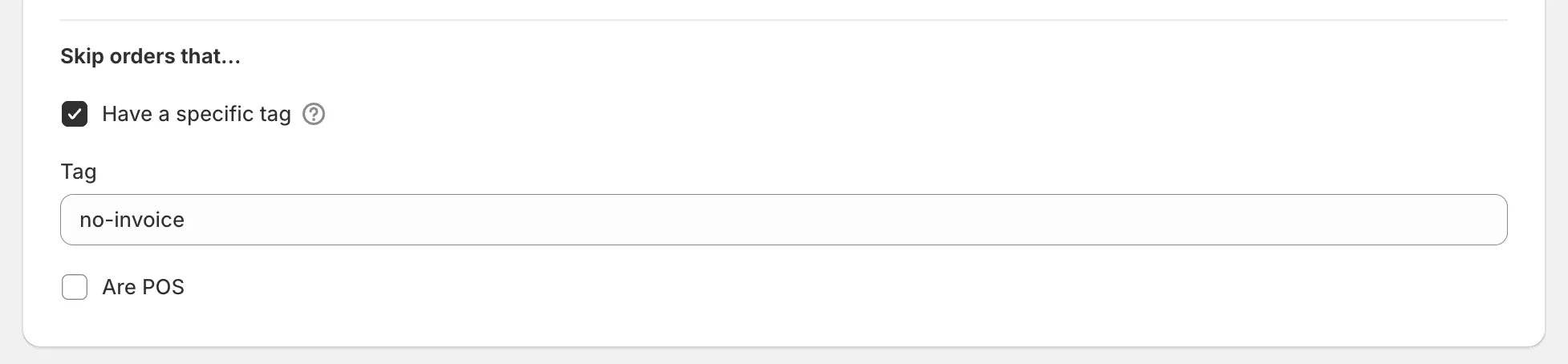
- Under Skip orders that…, tick Have a specific tag and type the tag in the Tag field that appears.
- Tick Are POS to skip orders placed at your point of sale.
- Click Save.
How the rules match
Section titled “How the rules match”- The tag is matched whole, ignoring case and surrounding spaces, so
no-invoiceandNo-Invoiceare the same tag andno-invoice-euis a different one. - The tag is added to the order in Shopify, on the order page or through an app or Flow workflow of your own. Invoice Inn never writes tags.
- The tag has to be on the order when the payment, or with the fulfilled trigger the fulfillment, is recorded. A tag added after the invoice exists changes nothing.
- An order counts as POS when Shopify recorded it as placed through Shopify POS.
Good to know
Section titled “Good to know”- The rules apply to the first invoice only. Once an order has an invoice, its refunds and edits are handled like any other order’s.
- A skipped order still appears under Needs action on the Orders page, because it has no invoice. Select it and use Dismiss if it never needs one, or Create invoice if it does after all.
- Skipping is about automation, not about the order. You can invoice a tagged or POS order by hand at any time.