

Invoice orders placed before you installed the app
Automation only covers orders placed after you installed Invoice Inn. Orders from before that are still listed on the Orders page, and you invoice them yourself: one at a time with Create invoice in the row, or several at once with Generate. The result is an ordinary invoice, numbered in sequence and counted toward your monthly limit.
Before you start
Section titled “Before you start”- The invoice is dated today, not the day of the order. If an older order needs the original date, change it afterwards with Edit. See Change the document date.
- Customer emails apply. With Send documents to customers automatically ticked on Automations, an invoice you create for an old order is emailed to that customer like any new one. Untick it first if those customers should not get an email now.
- Each invoice counts toward the month’s limit. On the Free plan that is 50 documents. If the backlog is larger than your limit, spread it over months or upgrade for a month. See Plans and monthly document limits.
Invoice one order
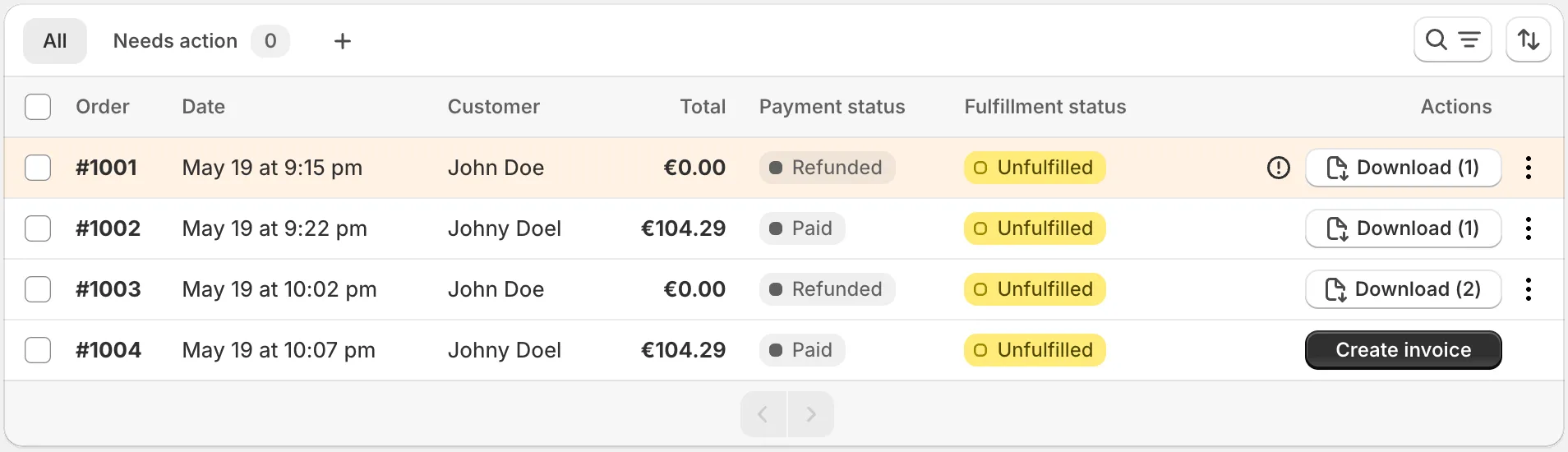
Section titled “Invoice one order”- Open Orders and stay on the All tab. It lists every order in your store, including those placed before you installed the app.
- Find the order. Type its number or the customer’s name in the search box, or sort by Date with Oldest first. The Payment status and Fulfillment status filters narrow the list further.
- Click Create invoice in the row. You will see “Invoice created successfully”, and the row shows the new document with a Download button.
Invoice several at once
Section titled “Invoice several at once”- Open Orders and tick the rows you want. The list shows 20 orders per page, and the selection is per page.
- Click Generate in the bulk actions above the table.
- Confirm in the Generate documents dialog, which asks “Generate documents for … selected orders?”.
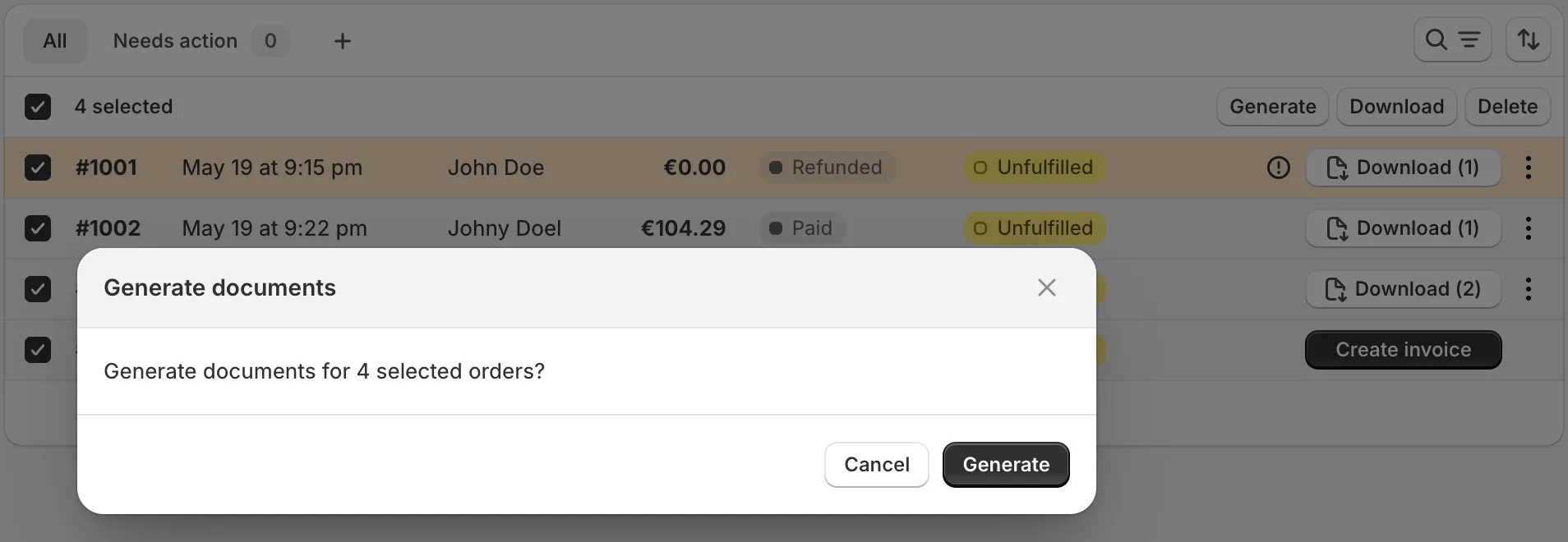
- Every selected order without documents gets an invoice. An order that already has its documents is skipped, and one whose documents no longer match its total gets the credit note or supplementary invoice it is missing. The message at the end reads “Generated … documents” with the number skipped.
Good to know
Section titled “Good to know”- Older orders never appear under Needs action for lack of an invoice. That tab starts at the install date. Use All to find them.
- The Free plan limit still applies. Once you reach it, Create invoice shows “Plan monthly limit exceeded” with an Upgrade plan button, and the rest waits for the first of the next month.
- Everything else works as for a new order. The invoice appears on Documents, goes to Google Drive or Dropbox if sync is on, and is included in exports by its document date.
- Numbers follow your format and continue from the last document. An older order does not get an older number.