Set up taxes in Shopify for correct invoices
Invoice Inn prints the tax that Shopify charged on the order. Nothing on this page makes the app calculate tax; it makes sure Shopify does, and that the invoice has somewhere to show it. Work through it once, before turning on Automations.
Before you start
Section titled “Before you start”Know which countries your business is registered for VAT in. Whether you need to register is a legal question this article does not answer; the EU VAT guide covers the common cases.
In Shopify
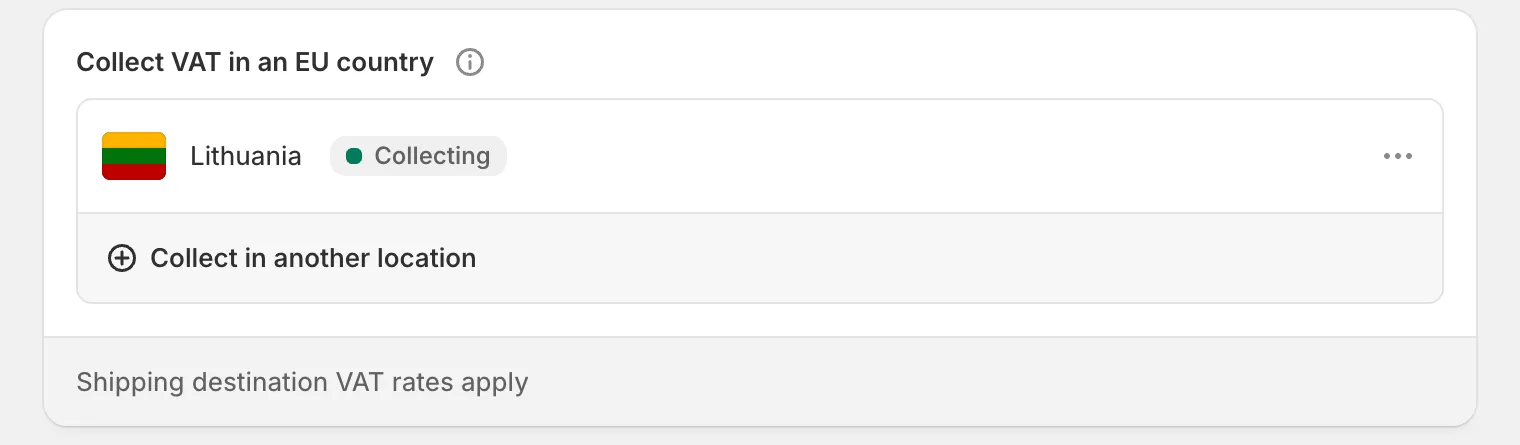
Section titled “In Shopify”- Collect tax in your regions. Open Settings > Taxes and duties, choose your region (European Union for an EU store) and enter each VAT registration you hold. A country only appears here once it is in a shipping zone under Settings > Shipping and delivery, so add the zone first if it is missing.
- Decide whether your prices include tax. The Include sales tax in product price and shipping rate setting, under Additional configuration at the bottom of Settings > Taxes and duties, decides whether a EUR 20 product is EUR 20 with VAT inside it or EUR 20 plus VAT. Either works; Include or exclude tax in product prices explains what changes on the invoice.
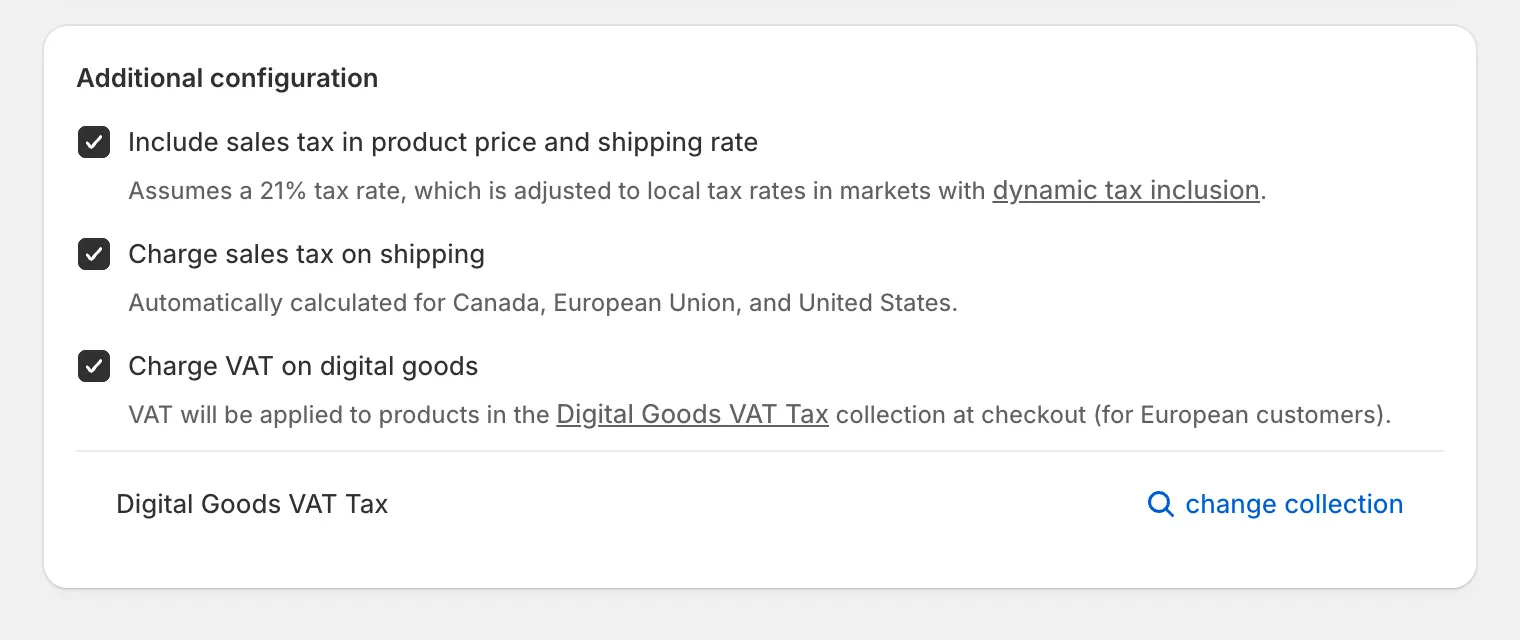
- Charge tax on shipping. In the same card, turn on Charge sales tax on shipping, otherwise the shipping line on every invoice shows 0%. See Charge tax on shipping.
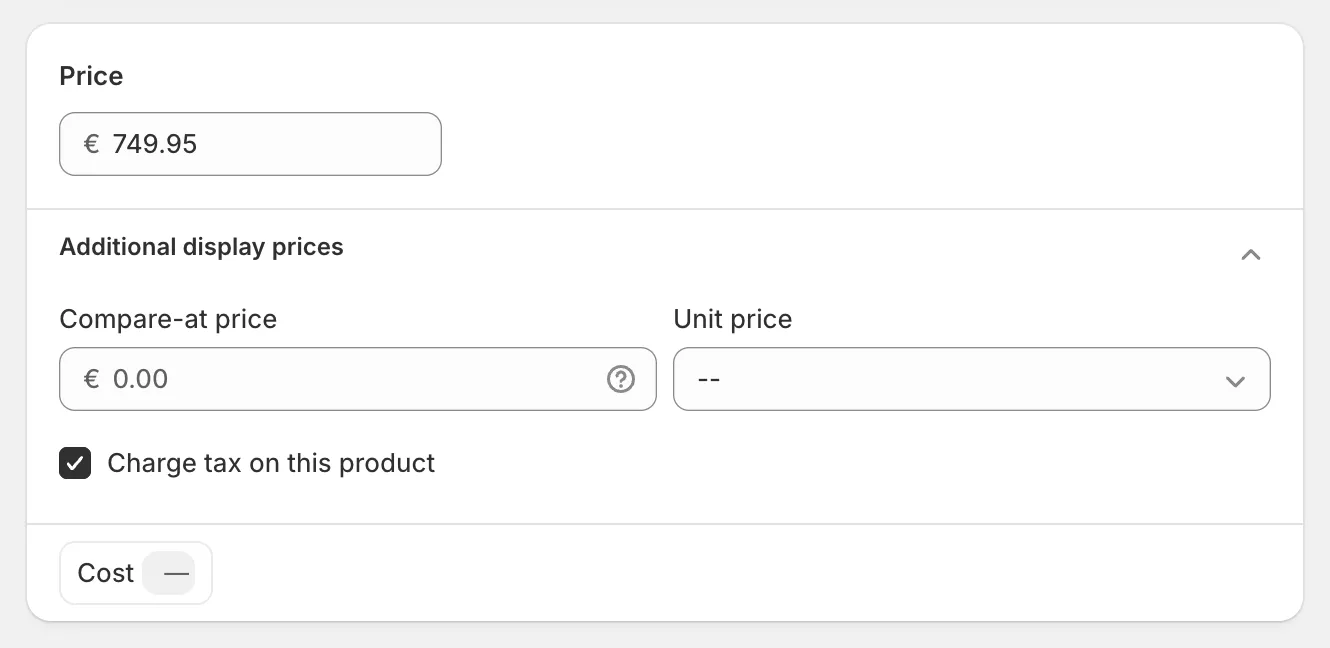
- Check that products are taxable. Open a product, and in the Price card expand the row of chips below the price and make sure Charge tax on this product is ticked. A product with this unticked prints at 0% on the invoice whatever the rest of the setup says.
In Invoice Inn
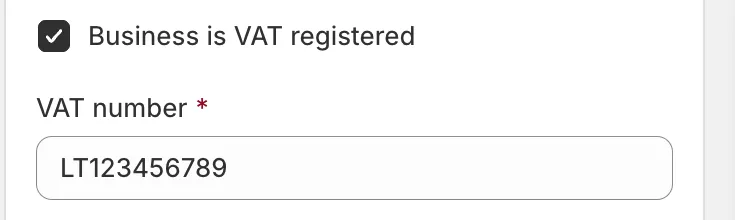
Section titled “In Invoice Inn”- Tell the app you are VAT registered. Open Customize > Business details, tick Business is VAT registered and enter your VAT number. This puts your VAT number in the seller block of every document and unlocks the VAT columns.
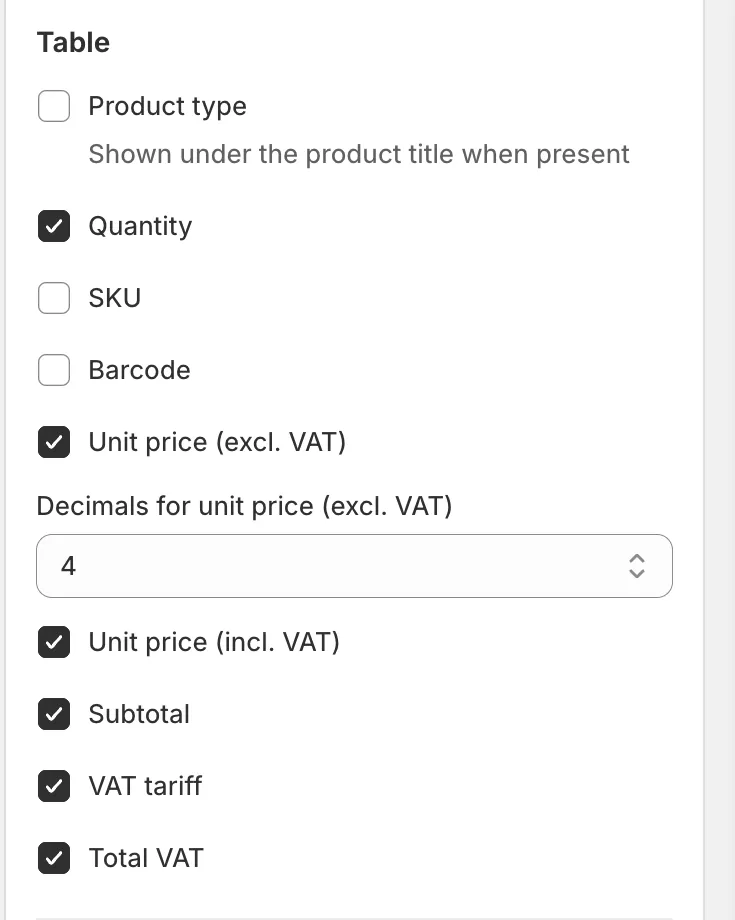
- Turn on the VAT columns. Open Customize > Content and tick the columns you want in the table: Unit price (excl. VAT), Unit price (incl. VAT), Subtotal, VAT tariff and Total VAT. The last three are greyed out with the note Requires VAT registration until step 5 is done.
- Place a test order and generate its invoice by hand: open Orders, find the order and click Create invoice in its row. Check the result before you turn on automatic generation.

How this shows on your invoice
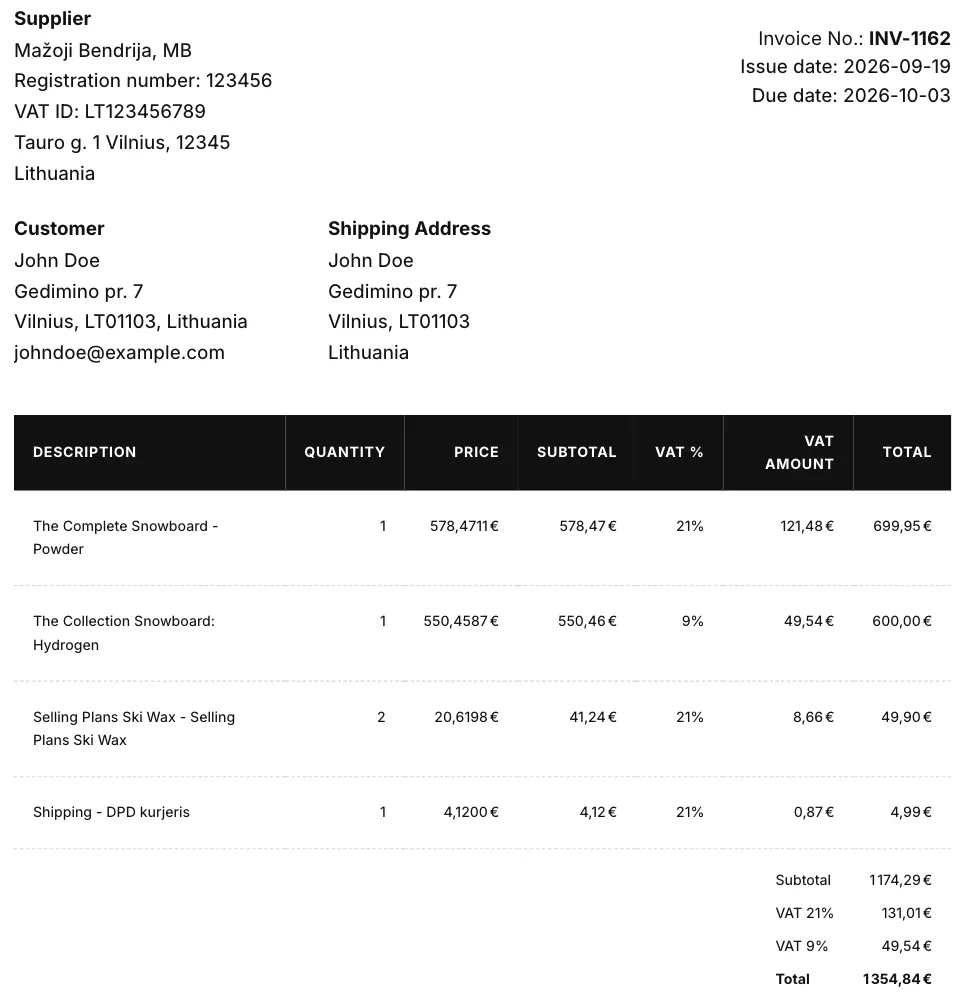
Section titled “How this shows on your invoice”Each line carries the VAT rate Shopify applied to it, in the VAT tariff column. The totals list the VAT per rate, so an order with 21% goods and 9% goods shows two VAT lines. Your VAT number from Business details prints in the seller block, next to your registration number and address.